




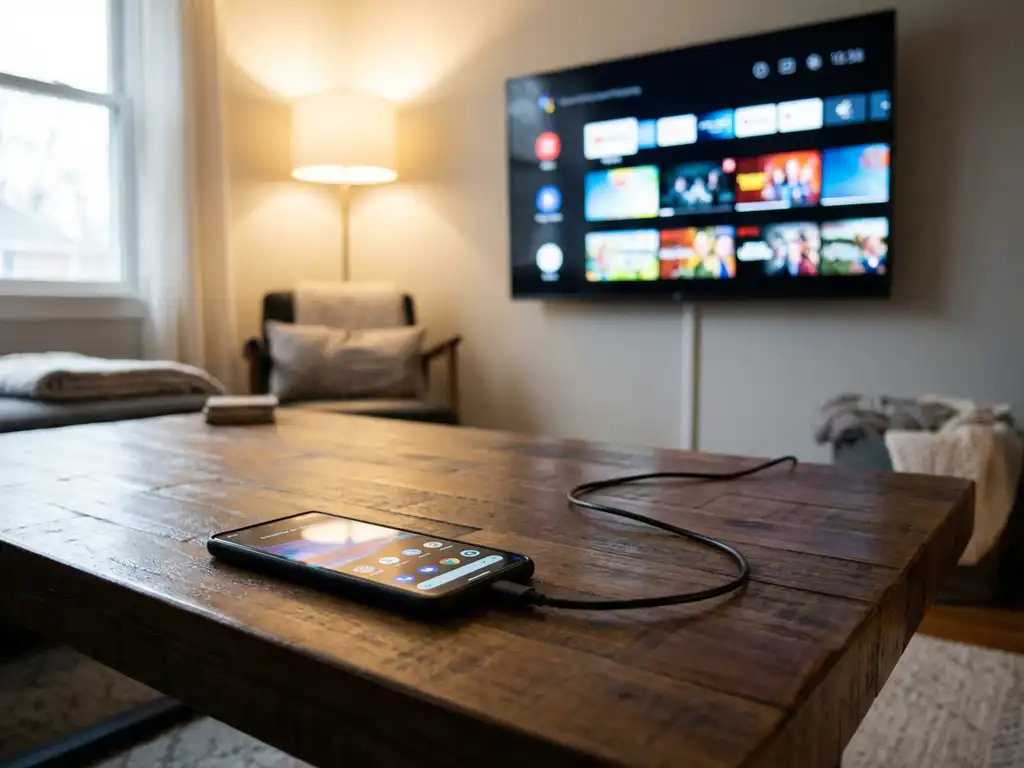
Yes, you can mirror your Android to a smart TV without a traditional Wi-Fi network. While most Android screen mirroring solutions require internet connectivity, several alternative methods enable casting via mobile hotspots, direct wireless connections, or wired setups. These approaches work independently of home Wi-Fi, allowing you to mirror Android to TV anywhere.

Can you actually mirror Android to a smart TV without Wi-Fi?
Android screen mirroring without Wi-Fi is absolutely possible using alternative connection methods. Your Android device can create its own wireless network using mobile hotspot functionality, enabling direct communication with compatible smart TVs. Additionally, many modern Android devices support wireless display protocols such as Miracast and Wi-Fi Direct, which establish peer-to-peer connections without requiring traditional internet access.
The key requirement is that both your Android device and smart TV support these alternative wireless protocols. Most Samsung, LG, Sony, and other major TV brands manufactured after 2015 include built-in wireless display capabilities. Your Android phone or tablet becomes the network source, eliminating reliance on home Wi-Fi while maintaining the convenience of wireless casting.
Physical connection options also exist for guaranteed compatibility. USB-C-to-HDMI adapters provide reliable wired mirroring that works regardless of wireless capabilities or network availability. This method delivers stable, high-quality video output without any wireless setup.
What are the best methods to cast Android to a TV without internet?
The most effective offline casting methods include creating a mobile hotspot, using a USB-C-to-HDMI connection, and using Miracast or Wi-Fi Direct. Each approach offers different advantages depending on your specific Android device and TV model.
Mobile hotspot casting turns your Android device into a wireless access point. Enable the hotspot in your phone’s settings, connect your smart TV to that network, and then use screen-mirroring apps to establish the connection. This method works with most modern smart TVs and preserves the convenience of wireless casting.
USB-C-to-HDMI adapters provide the most reliable solution for guaranteed compatibility. Simply connect the adapter to your Android device’s USB-C port, plug an HDMI cable into your TV, and your screen appears instantly. This wired approach eliminates wireless compatibility concerns entirely.
Miracast and Wi-Fi Direct offer built-in wireless options on compatible devices. These protocols create direct device-to-device connections without requiring internet access. Check your TV’s wireless display settings and your Android device’s Cast options to access these features.
How do you use a mobile hotspot for Android screen mirroring?
Mobile hotspot screen mirroring involves creating a personal Wi-Fi network on your Android device, connecting your TV to that network, and then establishing the mirroring connection through compatible apps or built-in casting features.
Start by enabling the mobile hotspot in your Android device’s Settings menu under “Connections” or “Network & Internet.” Configure the hotspot name and password, then activate the feature. Your phone will now broadcast its own wireless network that other devices can join.
Connect your smart TV to the newly created hotspot network through the TV’s Wi-Fi settings menu. Go to your TV’s network settings, select your phone’s hotspot name, and enter the password you set. The TV will connect to your phone’s personal network.
Launch your preferred screen-mirroring app or use Android’s built-in Cast feature. Many apps work by detecting devices on the same network, including your TV connected to your mobile hotspot. Select your TV from the list of available devices and begin mirroring your Android screen mirroring content.
Monitor your mobile data usage during hotspot mirroring, as this method uses cellular data for any internet-based streaming. Local content such as photos, videos, and offline apps will mirror without additional data usage.
Why won’t my Android connect to a TV for mirroring without Wi-Fi?
Connection failures typically result from compatibility issues between Android devices and smart TVs, incorrect wireless protocol settings, or insufficient mobile hotspot signal strength. Many older TV models lack support for modern wireless display standards, which can prevent successful offline mirroring.
Verify that both your Android device and TV support the same wireless display protocols. Miracast compatibility varies significantly by manufacturer and model year. Samsung TVs often use proprietary Smart View technology, while LG TVs may require specific app installations for the best compatibility.
Mobile hotspot signal strength directly affects connection stability. Keep your Android device closer to the TV during setup and mirroring sessions. Interference from other electronic devices can disrupt the wireless connection, causing frequent disconnections or setup failures.
App compatibility issues may also prevent mirroring. Some screen-mirroring applications require support for specific TV brands or additional receiver apps installed on the television. If Android’s built-in casting features fail to connect, try downloading a TV brand-specific mirroring app or check the knowledge base for troubleshooting guidance.
USB-C-to-HDMI adapters eliminate these wireless compatibility challenges entirely. When wireless methods consistently fail, a wired connection provides reliable mirroring regardless of device age, brand compatibility, or wireless protocol limitations.
How AirBeamTV helps with Android screen mirroring without Wi-Fi
AirBeamTV provides the most reliable solution for Android screen mirroring in challenging network environments. The platform delivers seamless casting capabilities that work even when traditional Wi-Fi connections are unavailable or unreliable.
AirBeamTV’s comprehensive mirroring solution offers several key advantages:
- Universal TV compatibility – Works with Samsung, LG, Sony, Fire TV, Roku, and other major smart TV brands
- Optimized mobile hotspot performance – Advanced algorithms ensure stable connections through personal hotspots
- Low-latency streaming – Minimizes delay for gaming, presentations, and real-time content
- Automatic network adaptation – Intelligently adjusts to available connection methods
- No additional hardware required – Works directly through your existing Android device and smart TV
Understanding these offline mirroring methods empowers you to cast Android content anywhere without relying on Wi-Fi. Whether you use a mobile hotspot, direct wireless protocols, or a wired connection, you can enjoy big-screen viewing even without internet access. If you need help with iPhone iPad screen mirroring or Mac screen mirroring solutions, AirBeamTV supports all major platforms. Ready to experience hassle-free Android screen mirroring? For additional support or questions, feel free to contact us and start casting your content to any smart TV, regardless of your network situation.
