




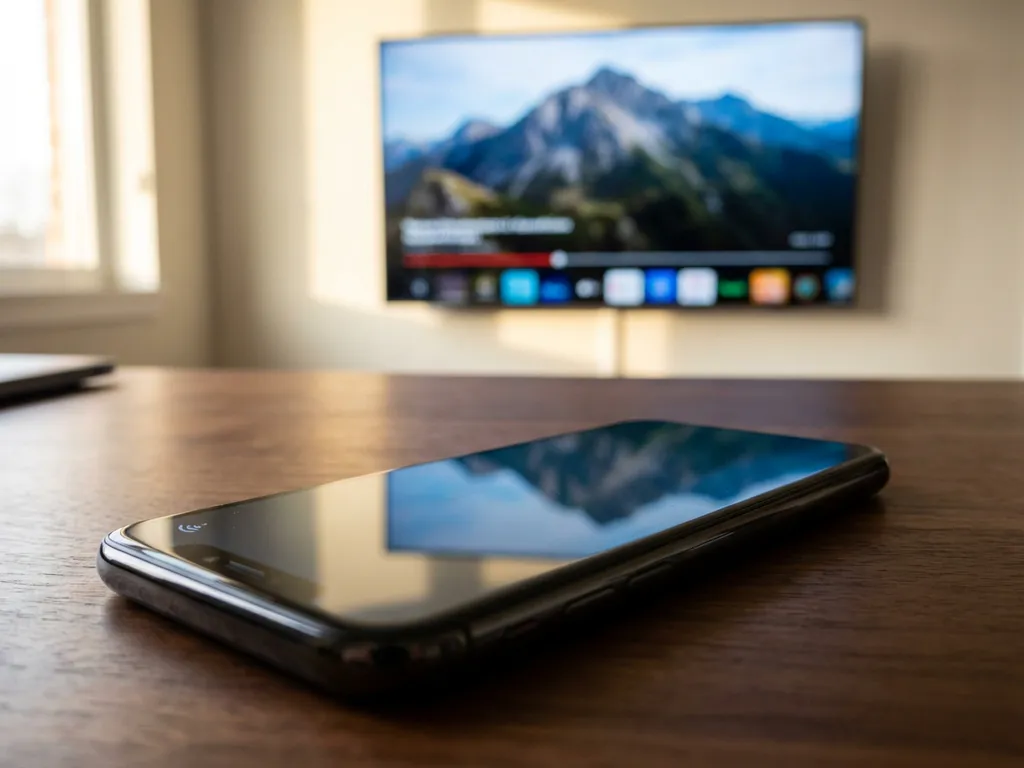
Android screen mirroring lets you wirelessly display your phone or tablet screen on your television. There are several methods available, from built-in wireless protocols to dedicated apps and wired connections. Each approach offers different benefits depending on your device, TV brand, and specific needs. Understanding these options helps you choose the best mirror android to tv solution for your situation.
What exactly is Android screen mirroring, and how does it work?
Android screen mirroring duplicates your device’s display on a larger screen, such as a TV or monitor, in real time. The technology works by transmitting your phone or tablet’s visual output through wireless protocols or physical connections to an external display.
The basic process involves establishing a connection between your Android device and the target display. Your phone captures its screen content and transmits this data to the receiving device, which then displays it on the larger screen. This happens continuously, creating a live mirror of everything you see on your phone.
Wireless mirroring relies on display protocols that communicate over your Wi-Fi network. Your Android device acts as a transmitter, sending compressed video and audio data to a receiver connected to your TV. The receiver decodes this information and displays it on your television screen.
The quality and speed of mirroring depend on your network strength, device capabilities, and the specific protocol used. Modern Android devices can mirror in high definition with minimal delay when using optimal connections.
What are the main wireless Android screen mirroring methods available?
The primary wireless mirroring methods include Miracast, Google Cast (Chromecast), smart TV casting features, and third-party mirroring apps. Each method uses different protocols and offers varying levels of compatibility with different devices and TVs.
Miracast is Android’s native wireless display standard that creates a direct Wi-Fi connection between your device and compatible displays. Most Android phones support Miracast through the “Cast” or “Smart View” option in Quick Settings. This method works with Miracast-enabled TVs and dongles without requiring an internet connection.
Google Cast technology powers Chromecast devices and built-in casting features on many smart TVs. Unlike Miracast, Google Cast streams specific content rather than mirroring your entire screen. You can cast videos, photos, and supported apps while continuing to use your phone for other tasks.
Many smart TV manufacturers include their own casting protocols. Samsung’s Smart View, LG’s Screen Share, and Sony’s casting features work directly with compatible Android devices. These built-in options often provide the smoothest experience with their respective TV brands.
Third-party mirroring apps offer solutions when native methods aren’t available or don’t work properly. These apps typically work across multiple TV brands and can provide more reliable connections than built-in options.
How do wired Android screen mirroring connections differ from wireless options?
Wired connections use physical cables to transmit your Android screen directly to your TV, offering more stable connections and better video quality than wireless methods. The main wired options include USB-C to HDMI, MHL cables, and SlimPort adapters.
USB-C to HDMI provides the most straightforward wired mirroring solution for modern Android devices. If your phone supports DisplayPort Alt Mode over USB-C, you can connect directly to any HDMI-equipped TV or monitor. This method delivers Full HD or 4K video with no compression or lag.
MHL (Mobile High-Definition Link) cables work with older Android devices that have micro-USB ports with MHL support. These cables can charge your device while mirroring, making them practical for extended viewing sessions. However, not all Android devices support MHL technology.
SlimPort adapters offer another wired solution that supports various output formats, including HDMI, DVI, and VGA. SlimPort typically provides better power efficiency than MHL and works with a broader range of displays.
Wired connections eliminate network-related issues like buffering, compression artifacts, and connection drops. They’re ideal for gaming, detailed presentations, or when you need the most reliable mirroring experience possible.
Which Android screen mirroring apps work best for different TV brands?
Different TV manufacturers often work better with specific mirroring apps designed for their systems. Universal apps like AirBeamTV offer broad compatibility, while manufacturer-specific solutions typically provide optimized performance for their respective TV brands.
For Samsung TVs, the built-in Smart View feature works well with Samsung phones, but third-party apps often provide more reliable connections across different Android brands. Dedicated Samsung mirroring apps available through the Google Play Store can offer enhanced compatibility and features beyond the native casting options.
LG smart TVs work with LG’s Screen Share feature, but universal mirroring apps often deliver more consistent performance. These apps can bypass compatibility issues that sometimes occur between non-LG Android devices and LG’s native casting protocols.
Sony, Philips, and Panasonic TVs benefit from apps that support multiple TV brands rather than relying solely on built-in features. Universal mirroring solutions can provide more stable connections and additional features like audio streaming.
Roku and Fire TV devices work well with dedicated casting apps that support their specific requirements. These streaming devices often provide more reliable mirroring than built-in smart TV features because they’re designed specifically for content streaming and casting.
What factors should you consider when choosing an Android mirroring method?
Your choice depends on device compatibility, intended use, network quality, and setup preferences. Consider whether you need occasional casting or regular mirroring, as this affects which solution provides the best balance of convenience and reliability.
Device compatibility is crucial because not all Android phones support every mirroring method. Check whether your device supports Miracast, MHL, or USB-C video output before investing in specific solutions. Older phones may have limited wireless mirroring capabilities.
Network quality significantly impacts wireless mirroring performance. Strong Wi-Fi connections provide smooth mirroring, while weak signals cause lag and quality issues. If your network is unreliable, wired connections offer more consistent results.
Your intended use affects the best choice. Gaming and detailed presentations benefit from wired connections due to lower latency. Casual video watching and photo sharing work well with wireless methods that offer more convenience and flexibility.
Setup complexity varies between methods. Built-in casting features require minimal setup but may have compatibility limitations. Third-party apps require installation but often provide more reliable connections across different device combinations. Wired solutions require appropriate cables but eliminate network dependencies entirely.
Consider the frequency of use when choosing your method. Regular mirroring justifies investing in dedicated apps or quality cables, while occasional use might be better served by built-in casting features that require no additional purchases. You may also want to enhance your setup with a universal remote control TV app for easier device management. For additional guidance on selecting the right solution, check our comprehensive knowledge base.
How AirBeamTV helps with Android screen mirroring
AirBeamTV provides a comprehensive solution for Android screen mirroring that addresses the common connectivity and compatibility challenges many users face. Our specialized mirroring apps deliver reliable, high-quality connections across multiple TV brands and streaming devices, eliminating the frustration of failed connections and poor video quality.
Here’s how AirBeamTV enhances your Android mirroring experience:
• Universal compatibility – Works seamlessly with Samsung, LG, Sony, Philips, and other major TV brands without requiring specific hardware
• Optimized performance – Advanced streaming technology ensures smooth video playback with minimal lag and superior audio quality
• Simple setup – Download the app, connect to your TV, and start mirroring in minutes without complex network configurations
• Stable connections – Proprietary protocols maintain consistent mirroring sessions without the dropouts common with built-in casting features
• Regular updates – Continuous improvements ensure compatibility with the latest Android devices and TV models
Ready to experience hassle-free Android screen mirroring? Download the AirBeamTV app for your specific TV brand from the Google Play Store and transform how you share content on the big screen. Whether you’re looking to mirror iPhone iPad screen or mirror your Mac screen, we have solutions for all your devices. Need help getting started? Don’t hesitate to contact us for personalized support.
