




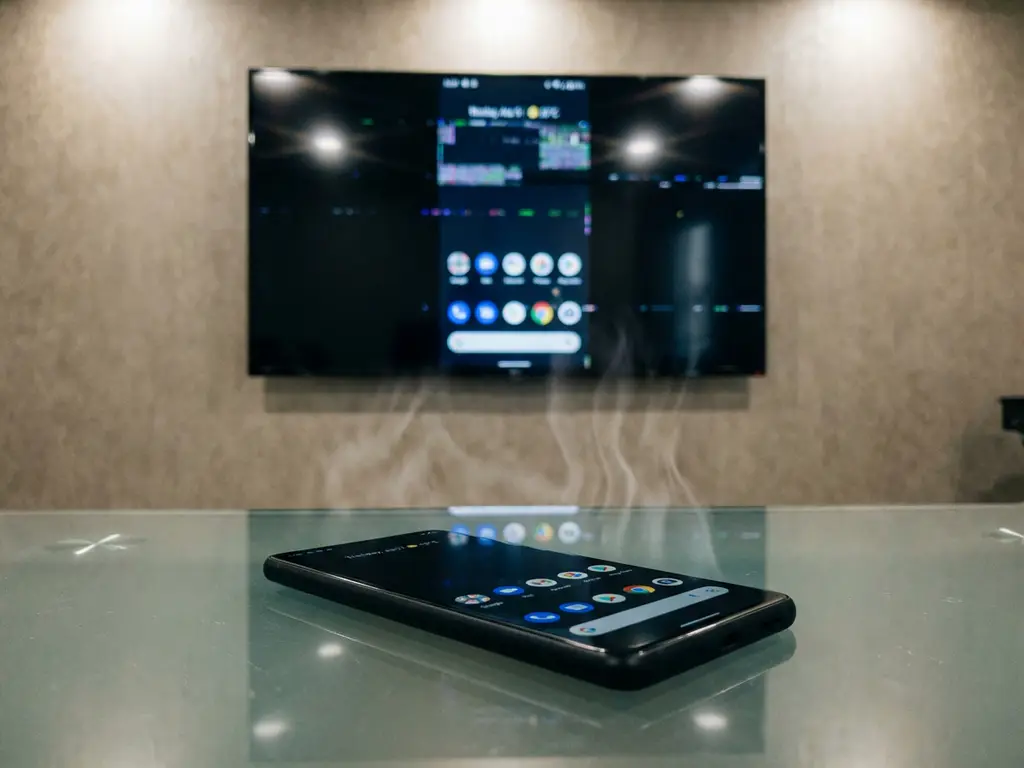
Android screen mirroring disconnections typically occur due to Wi-Fi network instability, device power management settings, or compatibility issues between your Android device and your TV. The most common culprits include weak wireless signals, automatic sleep modes that pause connections, and bandwidth limitations when multiple devices share the same network. Understanding these factors helps you maintain stable wireless casting connections.
What are the most common reasons Android screen mirroring keeps disconnecting?
Network interference and bandwidth limitations are the primary causes of Android screen mirroring disconnections. When your Wi-Fi network struggles to maintain consistent data transfer between your Android device and your TV, the mirroring connection drops unexpectedly.
Wi-Fi congestion happens when multiple devices compete for the same network resources. Android screen mirroring requires substantial bandwidth to transmit video and audio data wirelessly. If family members are streaming videos, downloading files, or using video calls simultaneously, your mirroring connection suffers.
Device compatibility issues also contribute to unstable connections. Different Android manufacturers implement screen mirroring protocols differently, creating potential conflicts with certain TV brands. Samsung Galaxy devices might work perfectly with Samsung Smart TVs but experience frequent drops with LG or Sony televisions.
Power management settings automatically optimise battery life by reducing background processes. Unfortunately, these energy-saving features often interrupt screen mirroring connections when your device thinks the casting app isn’t actively being used. Your Android device might pause the wireless connection to preserve battery life, causing unexpected disconnections.
Physical obstacles between your Android device and your Wi-Fi router can create signal interference. Walls, furniture, and other electronic devices can weaken the wireless signal strength needed for stable mirroring. Even microwave ovens and baby monitors operating on similar frequencies can disrupt your connection.
How does your Wi-Fi network affect screen mirroring stability?
Your Wi-Fi network quality directly determines screen mirroring reliability. A stable wireless connection with sufficient bandwidth and minimal interference ensures smooth casting without interruptions. Poor network conditions cause frequent disconnections and buffering issues.
Router placement significantly impacts mirroring performance. When your Wi-Fi router sits far from your TV or Android device, the wireless signal weakens, creating unstable connections. Ideally, both devices should maintain strong signal strength to your router for consistent data transmission.
Older Wi-Fi standards like 802.11n struggle with the high bandwidth demands of screen mirroring. Modern 802.11ac or Wi-Fi 6 networks provide better performance and stability for wireless casting. If your router uses outdated technology, upgrading can dramatically improve connection reliability.
Network congestion becomes problematic during peak usage times. When multiple household members stream content simultaneously, available bandwidth shrinks. Android screen mirroring competes with other devices for network resources, leading to dropped connections and poor video quality.
Dual-band routers offer 2.4 GHz and 5 GHz frequency options. The 2.4 GHz band travels further but carries less data, while 5 GHz provides higher speeds over shorter distances. For screen mirroring, connecting both your Android device and your TV to the same 5 GHz network often delivers better performance than mixing frequency bands.
Why do some Android devices have more connection problems than others?
Android version compatibility and manufacturer customisations create varying screen mirroring experiences across different devices. Newer Android versions include improved casting protocols, while older systems may lack optimisation for stable wireless connections.
Manufacturer customisations affect how screen mirroring functions on different Android devices. Samsung, Google Pixel, OnePlus, Xiaomi, and Vivo smartphones each implement casting features differently. These variations can create compatibility issues with certain TV brands or streaming devices, similar to how iPhone and iPad screen mirroring works differently across Apple devices.
Hardware limitations significantly influence mirroring performance. Devices with less processing power or limited RAM may struggle to maintain smooth wireless casting while running other applications. Budget Android phones often experience more frequent disconnections than flagship models with robust hardware specifications.
Background app management varies between Android manufacturers. Some devices aggressively close background processes to save battery, inadvertently terminating screen mirroring connections. Others maintain better app continuity but may drain the battery faster during wireless casting sessions.
Wireless chip quality differs across Android device price ranges. Premium smartphones typically include better Wi-Fi components that maintain stronger, more stable connections. Budget devices might use lower-quality wireless chips that struggle with the consistent data transmission required for screen mirroring, unlike the consistent performance you’d expect when you mirror your Mac screen.
What settings should you check when screen mirroring keeps dropping?
Power-saving modes and sleep settings are the most critical configurations to adjust when you experience frequent disconnections. These battery optimisation features often interrupt wireless connections to conserve energy, causing your mirroring session to drop unexpectedly.
Disable battery optimisation for your screen mirroring app through Android’s settings menu. Navigate to Battery settings, find Battery Optimisation, locate your mirroring application, and select “Don’t optimise.” This prevents Android from automatically closing the app during wireless casting.
Adjust your device’s sleep timeout settings to prevent the screen from turning off during mirroring sessions. Go to Display settings and extend the Screen Timeout to at least 10 minutes. Some mirroring apps stop functioning when your Android device’s screen goes dark.
Check your Wi-Fi sleep policy in Advanced Wi-Fi settings. Ensure Wi-Fi stays connected during sleep mode rather than switching to mobile data. This setting prevents your device from disconnecting from the wireless network when the screen turns off.
Review your TV’s power management settings as well. Many Smart TVs automatically enter sleep mode or disable network connections after periods of inactivity. Adjust these settings to maintain active Wi-Fi connectivity during screen mirroring sessions.
Consider using a dedicated mirroring app rather than built-in Android casting features. Third-party applications often provide better connection stability and include settings specifically designed to maintain wireless connections during extended use. You can also enhance your setup with a universal remote control TV app to manage your devices more efficiently. If you need additional help with configuration, check our comprehensive knowledge base for detailed troubleshooting guides.
How AirBeamTV helps with Android screen mirroring disconnections
AirBeamTV provides a reliable solution for Android screen mirroring disconnection issues through its advanced connection technology and optimised streaming protocols. The app addresses the most common causes of dropped connections while delivering consistent performance across different Android devices and TV brands.
Key benefits of AirBeamTV for stable screen mirroring include:
- Advanced connection algorithms that maintain stable wireless links even on congested networks
- Automatic reconnection features that restore your mirroring session if temporary disconnections occur
- Optimised power management that prevents battery-saving modes from interrupting your casting
- Universal compatibility across Android devices and major TV brands for consistent performance
- Built-in network diagnostics that identify and resolve common connectivity issues
- Dedicated customer support to help troubleshoot specific connection problems
Stop struggling with unreliable screen mirroring connections and frequent disconnections. Download AirBeamTV today to experience seamless wireless casting with the stability and performance your Android device deserves. If you encounter any issues, don’t hesitate to contact us for personalised support.
