




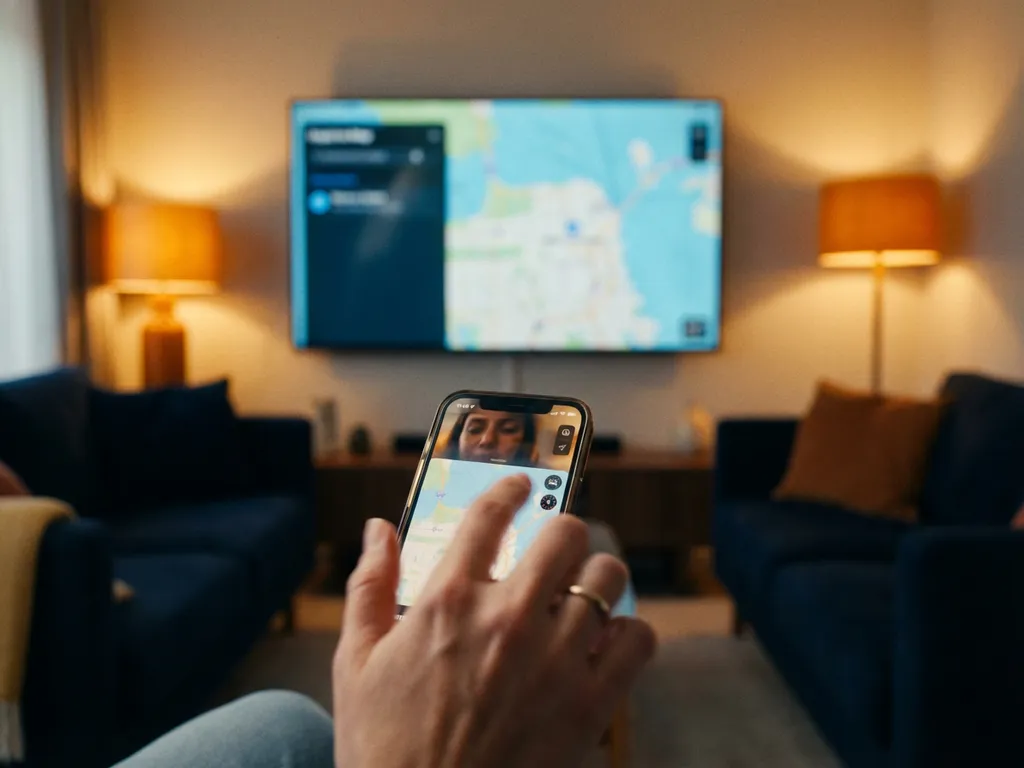
When you’re trying to mirror your Android device to your TV, nothing is more frustrating than tapping your screen and waiting forever for something to happen. That delayed response between touching your phone and seeing the action on your big screen can turn a smooth streaming session into a choppy, annoying experience.
Understanding what causes these touch delays in Android screen mirroring helps you fix the problem and get back to enjoying your content on the big screen without lag.
What causes delayed touch responses in Android screen mirroring?
Delayed touch responses in Android screen mirroring are primarily caused by network latency, processing overhead, and the compression-decompression cycle required to transmit your screen wirelessly. When you tap your Android device, the touch input must be processed, your screen captured, compressed, sent over Wi-Fi, decompressed, and displayed on your TV.
This entire chain creates multiple points where delays can occur. Your Android device needs to capture the screen changes after your touch, encode that visual data into a format suitable for transmission, and send it through your wireless network. Your TV or streaming device then receives this data, decodes it, and displays the updated screen.
Processing power plays a crucial role, too. Older Android devices may struggle with the computational demands of real-time screen encoding, while budget smartphones often lack the processing muscle needed for smooth mirroring. The screen mirroring app itself adds another layer of processing that can introduce delays if it is not properly optimized.
Device compatibility issues can worsen touch delays. Some Android phones and tablets handle screen mirroring better than others, with flagship devices from Samsung, Google, and OnePlus typically offering more responsive experiences than budget alternatives.
How does wireless network quality affect screen mirroring touch delay?
Wireless network quality directly impacts touch delay because screen mirroring relies entirely on Wi-Fi bandwidth and stability to transmit your screen data in real time. Poor network conditions create bottlenecks that cause noticeable delays between your touch inputs and their appearance on the TV screen.
Bandwidth limitations are the biggest culprit. Screen mirroring requires substantial data throughput to maintain smooth performance, especially when streaming high-definition content. If your Wi-Fi network is congested with other devices streaming videos, downloading files, or running updates, there is less bandwidth available for your mirroring session.
Network interference from other wireless devices can disrupt the consistent data flow needed for responsive mirroring. Microwaves, baby monitors, and neighboring Wi-Fi networks operating on the same channel can introduce packet loss and retransmission delays that directly translate into touch-response lag.
The distance between your Android device and your Wi-Fi router matters significantly. Weak signal strength forces your device to work harder to maintain connection stability, often resulting in reduced data rates and increased latency. Walls, floors, and other obstacles between your device and router compound this problem.
Network stability is just as important as speed. A connection that frequently drops packets or experiences intermittent connectivity issues will struggle to maintain the consistent data stream required for responsive screen mirroring, leading to frustrating delays and stuttering playback.
Which Android devices experience the most touch delay during mirroring?
Budget Android smartphones and older devices typically experience the most significant touch delays during screen mirroring due to limited processing power, insufficient RAM, and outdated wireless hardware. Devices with less than 4 GB of RAM or processors more than three years old often struggle with the computational demands of real-time screen encoding.
Entry-level smartphones from various manufacturers frequently exhibit poor mirroring performance because they prioritize cost savings over processing capability. These devices often use slower processors and basic Wi-Fi chips that cannot handle the data throughput required for smooth mirroring experiences.
Devices running heavily customized Android versions or bloatware-laden operating systems also tend to experience more delays. The additional software layers and background processes consume valuable system resources that could otherwise be dedicated to screen mirroring performance.
Conversely, flagship devices such as Samsung Galaxy phones, Google Pixel phones, OnePlus devices, and Xiaomi phones generally provide more responsive mirroring experiences. These devices feature powerful processors, ample RAM, and high-quality Wi-Fi hardware designed to handle demanding tasks such as wireless screen casting.
Age plays a critical role regardless of the original device quality. Even premium Android phones from four or five years ago may struggle with modern screen mirroring demands due to outdated hardware and software optimizations. If you’re experiencing similar issues with other devices, you might also want to check our guides for mirroring iPhone and iPad screens or mirroring your Mac screen.
How can you reduce touch delay when screen mirroring Android devices?
You can significantly reduce touch delay by ensuring that both your Android device and TV are connected to a strong, dedicated Wi-Fi network, closing unnecessary apps running in the background, and positioning your device closer to your wireless router. These steps address the most common causes of mirroring lag.
Start by optimizing your network connection. Connect to a 5 GHz Wi-Fi network instead of 2.4 GHz when available, as it typically offers better performance and less congestion. Make sure you are using a reliable screen mirroring app designed for your specific TV brand rather than a generic casting solution.
Clear your Android device’s memory before starting your mirroring session. Close all unnecessary apps, disable automatic updates, and pause any downloads or cloud syncing that might compete for bandwidth. This frees up both processing power and network resources for smoother mirroring.
Position matters more than you might think. Keep your Android device within a reasonable range of your Wi-Fi router and minimize obstacles between them. If possible, ensure your TV or streaming device also has a strong connection to the same network.
Consider upgrading your equipment if delays persist. A modern router with Wi-Fi 6 support can dramatically improve mirroring performance, while switching to a dedicated screen mirroring app designed for your specific setup often provides better results than built-in casting features. For additional troubleshooting tips and detailed setup guides, check out our comprehensive knowledge base.
For the smoothest experience, download a specialized mirroring app from AirBeam.TV that is optimized for your TV brand. These apps eliminate many compatibility issues and provide more reliable performance than generic solutions, helping you enjoy your content on the big screen without frustrating delays. You can also enhance your setup with a universal remote control TV app for seamless device management. If you continue experiencing issues, don’t hesitate to contact our support team for personalized assistance.
