




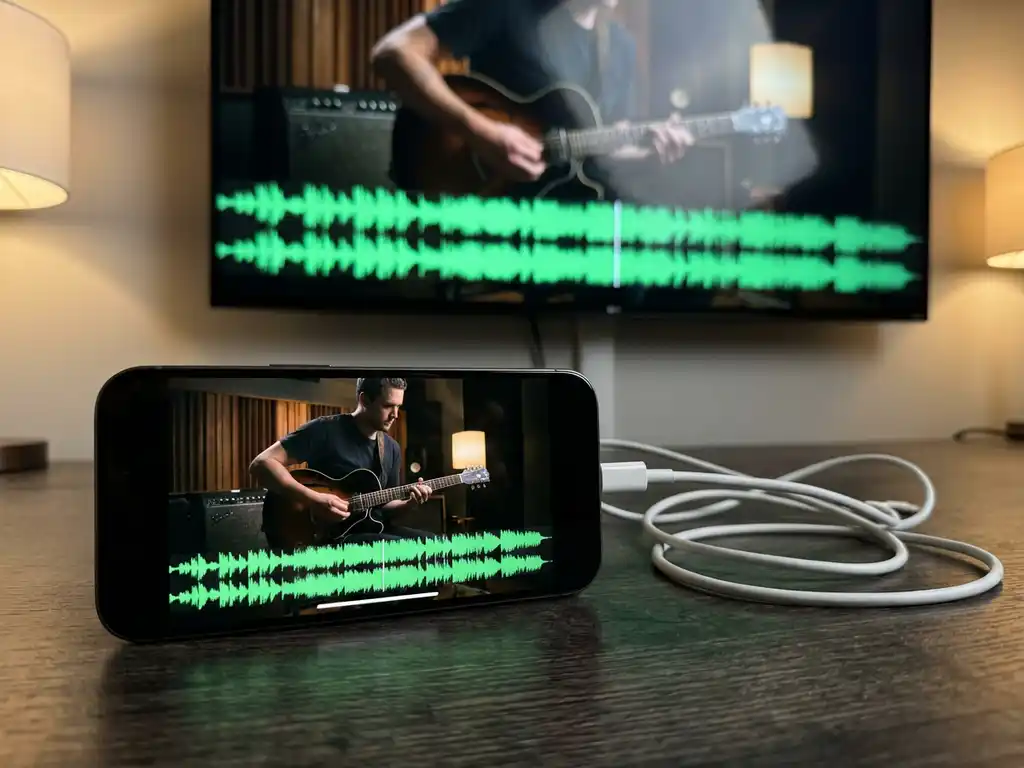
iPhone screen mirroring audio delay occurs when the sound from your device reaches your TV later than the video, creating an annoying mismatch between what you see and what you hear. This happens because wireless casting involves compressing, transmitting, and processing audio and video streams separately across your Wi-Fi network, with audio often taking longer to process than video on your television.
What exactly is iPhone screen mirroring audio delay, and how does it happen?
Audio delay in iPhone screen mirroring is the time gap between video appearing on your TV and the corresponding sound playing through your television speakers. This synchronisation issue occurs because your iPhone must compress both video and audio streams, send them wirelessly through your Wi-Fi network, and your TV must then decode and process each stream separately.
When you mirror your iPhone screen wirelessly, your device captures everything displayed and converts it into data packets. These packets travel through your network to your Smart TV, which then reconstructs the audio and video. The problem is that audio and video processing happens at different speeds on most televisions. Video typically processes faster, whilst audio often requires additional buffering time, especially when your TV applies sound enhancement features or routes audio through external speakers.
The wireless transmission itself adds another layer of complexity. Your iPhone must maintain a constant stream of data whilst managing network fluctuations, interference from other devices, and varying signal strength. Each of these factors can affect audio and video streams differently, leading to the frustrating lip-sync issues you notice when watching videos or making video calls through screen mirroring.
What are the main causes of audio lag when mirroring iPhone to TV?
Network interference and processing limitations are the primary culprits behind iPhone screen mirroring audio delay. Your Wi-Fi network quality, TV processing power, and the distance between devices all contribute to how well audio and video stay synchronised during wireless casting.
Wi-Fi network congestion significantly impacts mirroring performance. When multiple devices share your network bandwidth, or neighbouring networks operate on the same channel, your iPhone struggles to maintain consistent data transmission. This inconsistency affects audio streams more than video because sound requires precise timing to remain in sync.
Your TV’s processing capabilities play a crucial role in audio delay. Older Smart TVs often lack the processing power to handle high-quality wireless streams efficiently. Many televisions also apply audio enhancement features such as surround sound processing or dialogue enhancement, which add extra milliseconds of delay whilst video plays immediately.
Distance from your router creates another common issue. As your iPhone moves further from your Wi-Fi source, signal strength weakens, causing data packets to arrive inconsistently. Audio packets are typically smaller but more time-sensitive than video packets, making them more susceptible to network timing variations.
Different mirroring apps handle data compression and transmission in varying ways. Some apps prioritise video quality over audio synchronisation, whilst others may not optimise their streaming protocols for your specific TV brand, leading to compatibility issues that manifest as audio lag.
How can you reduce iPhone screen mirroring audio delay effectively?
Improving your network connection and optimising device positioning can significantly reduce iPhone screen mirroring audio delay. Moving closer to your router, switching to a less congested Wi-Fi channel, and adjusting your TV’s audio settings often resolve most synchronisation issues.
Start by ensuring both your iPhone and TV connect to the same 5GHz Wi-Fi network rather than 2.4GHz. The 5GHz band offers more bandwidth and less interference, providing the stable connection needed for smooth audio-video synchronisation. Position your iPhone within clear line of sight of your router, avoiding walls and electronic devices that might interfere with the signal.
Check your TV’s audio settings for any processing features that might add delay. Disable sound enhancement options such as virtual surround sound, dialogue enhancement, or audio levelling. These features, whilst improving audio quality, add processing time that creates sync issues during screen mirroring.
Restart both your iPhone and TV before mirroring sessions. This clears temporary files and resets network connections, often resolving minor synchronisation glitches. Close unnecessary apps on your iPhone to free up processing power for the mirroring application.
Consider switching mirroring apps if problems persist. Different applications handle wireless streaming with varying levels of optimisation. Some apps offer audio delay adjustment settings that let you manually fine-tune synchronisation for your specific TV model. If you need additional troubleshooting help, you can find more detailed guidance in the knowledge base.
Why does audio delay vary between different TV brands and mirroring apps?
TV manufacturers implement different wireless casting protocols and audio processing systems, causing significant variation in screen mirroring performance between brands. Samsung, LG, Sony, and other manufacturers each handle incoming wireless streams differently, with some optimised for faster audio processing whilst others prioritise video quality.
Each TV brand processes wireless audio streams using proprietary technology. Samsung Smart TVs might decode audio faster due to their specific chipset design, whilst LG televisions could introduce more delay because of their audio enhancement processing. Sony TVs often include additional sound processing that improves quality but increases latency.
Mirroring apps also vary significantly in their optimisation levels. Some applications are specifically designed for certain TV brands, offering better compatibility and reduced delay. Apps that support multiple TV manufacturers often use generic streaming protocols that work everywhere but aren’t optimised for any particular brand’s unique processing characteristics. Whether you’re using Android mirroring or Mac screen mirroring, these compatibility factors remain important considerations.
The combination of your specific iPhone model, chosen mirroring app, and TV brand creates a unique performance profile. Newer iPhones with more powerful processors can handle wireless streaming more efficiently, whilst older devices might struggle with the computational demands of real-time compression and transmission.
Network protocol differences also contribute to varying performance. Some apps use more efficient compression algorithms or transmission methods that work better with specific TV brands. This explains why switching between mirroring applications can dramatically improve or worsen audio synchronisation on the same TV.
Understanding these compatibility factors helps you choose the right combination of mirroring app and settings for your specific setup. Testing different apps and configurations often reveals the optimal solution for your particular iPhone and TV combination. You can also enhance your setup with a universal remote control TV app to manage your television more conveniently alongside your mirroring solution.
How AirBeamTV helps with iPhone screen mirroring audio delay
AirBeamTV provides a comprehensive solution for iPhone screen mirroring audio delay issues through its advanced streaming technology and optimised compatibility across TV brands. The app addresses synchronisation problems with several key features:
• Intelligent audio-video synchronisation that automatically adjusts timing based on your specific TV model
• Optimised streaming protocols designed to work seamlessly with Samsung, LG, Sony, and other major TV brands
• Adaptive network management that maintains stable connections even with varying Wi-Fi conditions
• Low-latency transmission that minimises processing delays for real-time content
• Brand-specific optimisation that leverages each manufacturer’s unique casting capabilities
Experience seamless iPhone screen mirroring without audio delay issues. Download AirBeamTV today and enjoy perfectly synchronised wireless casting to your Smart TV. If you encounter any issues or need personalised assistance, don’t hesitate to contact us for expert support.
