




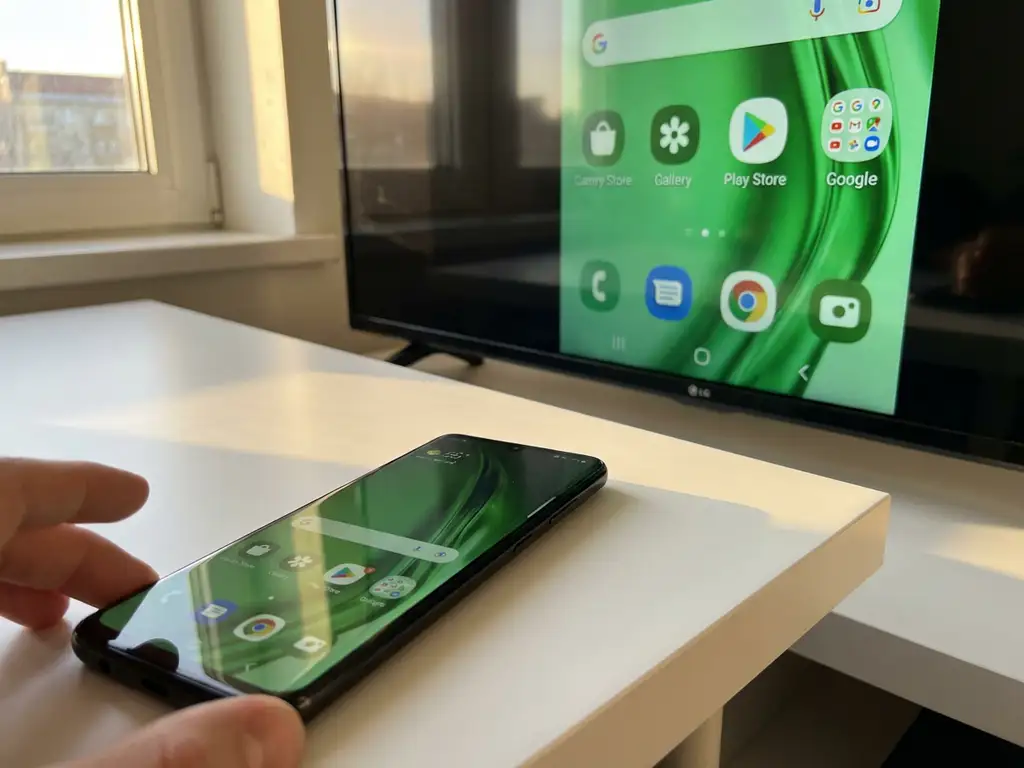
Screen mirroring your iPhone to your TV should display crisp, clear colors that match what you see on your device. But sometimes, frustrating green-tint issues can ruin your viewing experience, turning your favorite videos into an unwatchable mess of discolored content.
Whether you’re trying to share photos with family or stream your favorite show on the big screen, green-screen problems during iPhone mirroring are more common than you might think. The good news is that these color-distortion issues usually have straightforward solutions that don’t require any technical expertise.
What causes green tint when mirroring iPhone to TV?
A green tint during iPhone screen mirroring typically occurs due to Wi-Fi interference, incompatible video codecs, or hardware-processing conflicts between your iPhone and TV. The most common culprit is insufficient bandwidth, which can cause the video stream to degrade and display incorrect color information.
When your iPhone mirrors content to your TV, it compresses the video signal and sends it over your Wi-Fi network. If this data becomes corrupted or is compressed too heavily, the color channels can become misaligned. The green tint specifically occurs when the red and blue channels drop out or are delayed, leaving only the green channel displaying properly.
Other technical factors that contribute to green-tint issues include outdated TV firmware, conflicting HDCP (High-bandwidth Digital Content Protection) protocols, and memory-buffer overflows in your TV’s processing unit. Some smart TV models struggle to decode certain video formats from iOS devices, especially when multiple apps are running simultaneously on your iPhone. For more detailed troubleshooting guidance, check our comprehensive knowledge base.
Why does screen mirroring show different colors than my iPhone?
Screen mirroring can display different colors because your iPhone and TV use different color profiles and processing methods. Your iPhone screen uses a specific color gamut and brightness calibration that may not match your TV’s display settings, creating noticeable color variations during wireless casting.
The difference becomes more pronounced when your TV automatically adjusts brightness, contrast, or color temperature while receiving the mirrored signal. Many smart TVs apply their own image-enhancement algorithms that can oversaturate colors or shift the white balance, making your mirrored content look dramatically different from what appears on your iPhone screen.
Additionally, the wireless transmission process itself can affect color accuracy. When your iPhone converts its display output into a streamable format, some color information is lost or compressed. This is especially noticeable with HDR content, where the expanded color range on your iPhone is compressed to fit your TV’s standard color capabilities. Similar color issues can also occur when you mirror your Mac screen to a TV.
How do you fix green-screen issues during iPhone mirroring?
To fix green-screen issues during iPhone mirroring, restart both your iPhone and TV, ensure both devices are connected to the same Wi-Fi network, and close unnecessary apps running in the background. This resolves most temporary glitches that cause color distortion.
Start by completely powering off your TV for 30 seconds, then turning it back on. On your iPhone, close all running apps by double-clicking the Home button and swiping up on each app. Restart your iPhone by holding the power button and following the on-screen prompts.
Check your Wi-Fi connection strength on both devices. Move your iPhone closer to your router if possible, and make sure no other devices are heavily using your network bandwidth. Streaming services, downloads, or other connected devices can interfere with the mirroring signal quality.
If the green tint persists, try adjusting your TV’s picture settings. Switch to “Movie” or “Cinema” mode, which typically provides more accurate color reproduction. Disable any automatic picture-enhancement features, such as “Dynamic Color” or “Vivid Mode,” that might be interfering with the incoming signal. For persistent issues, consider using professional screen mirroring solutions from AirBeam TV that offer better color accuracy.
Does Wi-Fi quality affect screen mirroring color problems?
Yes, poor Wi-Fi quality can directly cause screen mirroring color problems by creating packet loss and transmission delays that corrupt video color information. Weak Wi-Fi signals force your iPhone to reduce video quality and compress color data more aggressively, often resulting in green tints and other color distortions.
When your Wi-Fi connection drops packets or experiences high latency, the color channels in your video stream can become desynchronized. This means the red, green, and blue color information arrives at your TV at slightly different times, creating the characteristic green tint when the other color channels lag behind.
Network congestion from other devices also affects color accuracy during mirroring. If multiple devices share your Wi-Fi bandwidth for streaming, downloads, or video calls, your iPhone may not have enough consistent bandwidth to maintain proper color transmission. This can force the device to prioritize basic video transmission over color accuracy. These issues are not limited to iOS devices – similar problems can occur when you mirror Android to TV.
To improve Wi-Fi quality for better color reproduction, position your iPhone within 15 feet of your router when possible. Consider upgrading to a 5 GHz Wi-Fi network if you’re currently using 2.4 GHz, as the higher frequency provides more bandwidth and less interference. You can also temporarily pause other internet activities while screen mirroring to ensure maximum bandwidth for color-accurate transmission. You may also find it helpful to use a universal remote control TV app to manage your TV settings more conveniently during mirroring sessions. If you continue experiencing issues, don’t hesitate to contact us for personalized support.
