




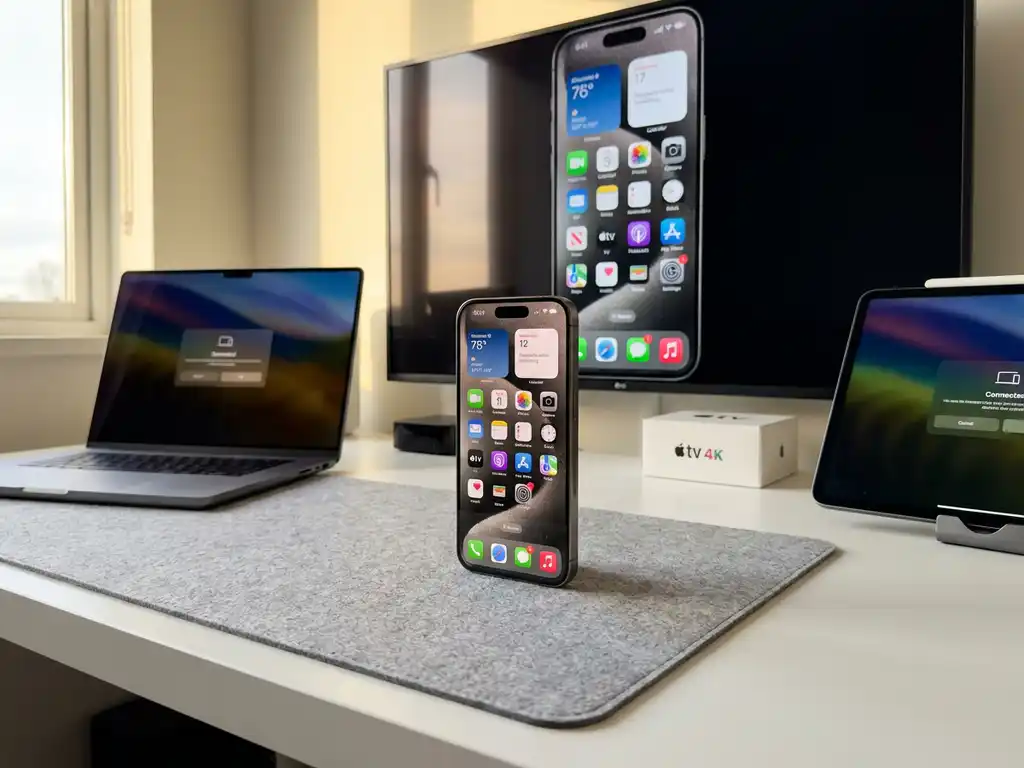
Your iPhone supports screen mirroring to a wide variety of devices, including smart TVs, streaming devices, gaming consoles, and computers. You can mirror wirelessly using built-in AirPlay, third-party apps, or by connecting via HDMI adapters. Most modern smart TVs from Samsung, LG, Sony, and other brands support iPhone mirroring through dedicated apps or built-in protocols, while streaming devices like Roku, Fire TV, and Chromecast offer additional compatibility options.
What devices can you mirror your iPhone to without Apple TV?
You can mirror your iPhone to smart TVs, streaming devices, gaming consoles, and computers without needing an Apple TV. Most modern smart TVs include built-in AirPlay support or work with third-party mirroring apps. Popular streaming devices like Roku, Amazon Fire TV, Chromecast, and Android TV boxes all support iPhone screen mirroring through various methods.
Smart TVs from major manufacturers, including Samsung, LG, Sony, TCL, Panasonic, Philips, and Hisense, typically support iPhone mirroring. Many newer models include native AirPlay compatibility, allowing a direct wireless connection from your iPhone. For older TVs or models without built-in support, dedicated mirroring apps provide seamless connectivity.
Gaming consoles like PlayStation and Xbox can also support iPhone screen mirroring through their media streaming capabilities. Windows PCs and Mac computers can receive your iPhone’s screen using built-in features or third-party applications. The key requirement is that both your iPhone and the target device are connected to the same Wi-Fi network for wireless mirroring to work properly.
How does iPhone screen mirroring work with different Smart TV brands?
iPhone screen mirroring compatibility varies by smart TV brand. Newer models offer built-in AirPlay support, while older TVs require dedicated apps. Samsung, LG, Sony, and TCL smart TVs manufactured after 2019 typically include native AirPlay functionality, allowing direct iPhone mirroring without additional software.
Samsung smart TVs support iPhone mirroring through both built-in AirPlay and Samsung’s SmartThings app. LG TVs use webOS with integrated AirPlay support, while Sony Android TVs offer multiple connection methods, including Google Cast and AirPlay. With these brands, you simply select your TV from the AirPlay menu in your iPhone’s Control Centre.
Older smart TV models or budget brands without built-in AirPlay support can use third-party mirroring applications. These apps create a wireless bridge between your iPhone and TV, enabling screen casting without requiring Apple’s proprietary technology. The setup process typically involves downloading an app on your TV or streaming device and then connecting through your iPhone’s screen mirroring feature.
What streaming devices support iPhone screen mirroring?
Popular streaming devices, including Roku, Amazon Fire TV, Chromecast, and Android TV boxes, all support iPhone screen mirroring, with varying setup requirements. Apple TV provides the most seamless experience with native AirPlay, while other devices use alternative connection methods or third-party applications.
Roku devices support iPhone mirroring through their built-in screen mirroring feature, which you can access from your iPhone’s Control Centre. Amazon Fire TV typically requires the AirScreen app or similar third-party software to enable iPhone connectivity. Google Chromecast supports iPhone mirroring through the Google Home app or compatible casting applications.
Android TV boxes and streaming sticks offer multiple iPhone mirroring options, including built-in casting protocols and downloadable apps. Most modern streaming devices support both audio and video mirroring from iPhones, maintaining high-definition quality over Wi-Fi connections. Setup typically involves connecting both devices to the same network and selecting your streaming device from the available casting options.
Which iPhone screen mirroring methods work best for different situations?
AirPlay works best for Apple ecosystem users, while third-party apps suit mixed-device environments, and HDMI adapters provide the most reliable connection for important presentations. Your choice depends on device compatibility, network stability, and your specific use case.
For casual home entertainment, wireless methods like AirPlay or third-party mirroring apps offer convenience and flexibility. These solutions work well for streaming videos, sharing photos, or displaying social media content on larger screens. The wireless approach eliminates cable clutter and allows you to move freely while maintaining the connection.
Business presentations and other critical situations benefit from wired HDMI connections using Lightning-to-HDMI adapters. This method provides the most stable connection, eliminating potential Wi-Fi interruptions or latency issues. Gaming and interactive applications can also perform better with wired connections due to reduced input lag and more consistent performance.
For mixed-brand environments or older TVs, third-party mirroring apps provide the most versatile solution. These applications work across different manufacturers and device types, creating broader compatibility regardless of your TV’s built-in features. They’re particularly useful when travelling or using unfamiliar display equipment, and you can also use a universal remote control TV app to manage your devices. If you need additional support, check our comprehensive knowledge base for troubleshooting guides.
How AirBeamTV helps with iPhone screen mirroring
AirBeamTV provides a comprehensive solution for iPhone screen mirroring across all major TV brands and streaming devices, eliminating compatibility concerns and setup complications. Whether you own a Samsung, LG, Sony, or any other smart TV brand, AirBeamTV ensures reliable wireless mirroring without requiring additional hardware or complex configurations.
Key benefits of using AirBeamTV for your iPhone mirroring needs include:
- Universal compatibility – Works with virtually all smart TV brands and models, including older devices without built-in AirPlay support
- High-quality streaming – Maintains full HD resolution and audio synchronization for optimal viewing experience
- Simple setup process – Connect your iPhone to any TV in just a few taps without technical expertise
- Stable connections – Advanced wireless protocols ensure consistent performance without interruptions
- No additional hardware required – Eliminates the need for cables, adapters, or expensive streaming devices
Transform your iPhone into a powerful entertainment hub and enjoy seamless screen mirroring to any TV. Download AirBeamTV today and experience the easiest way to share your iPhone’s screen with family, friends, or colleagues on the big screen. For any questions or assistance, feel free to contact us for expert support.
