




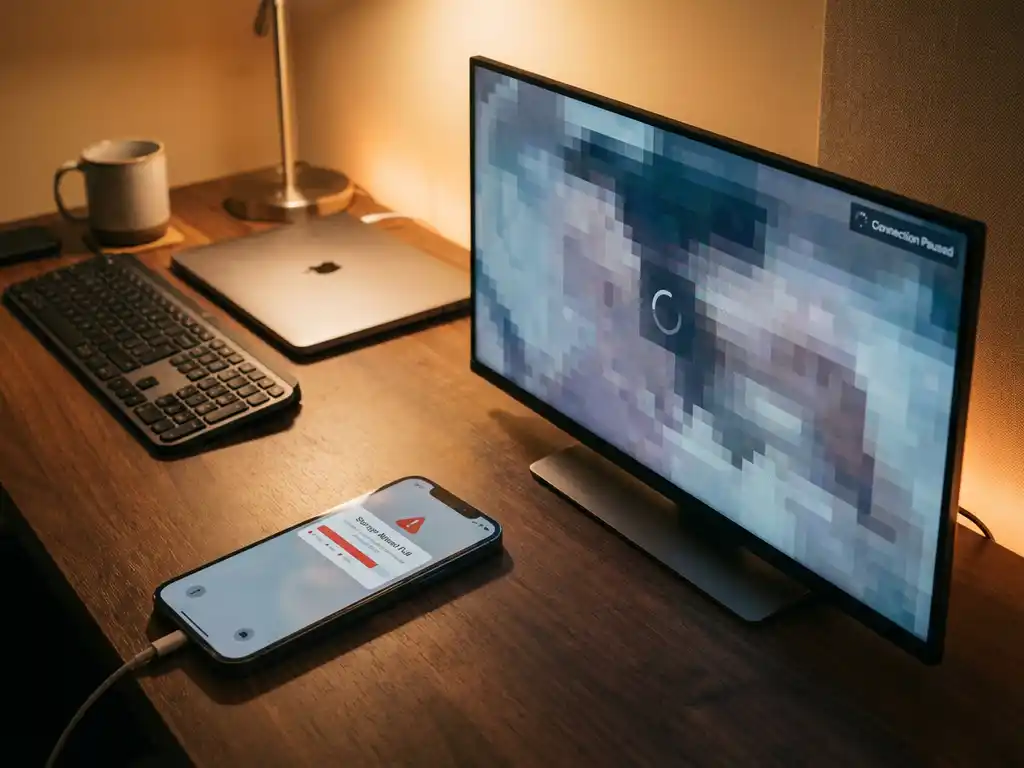
When you’re using iPhone screen mirroring to watch videos, share photos, or present content on a big screen, running out of storage space can suddenly interrupt your experience. This frustrating scenario affects millions of iPhone users who rely on screen mirroring apps to cast their screens wirelessly to smart TVs.
Understanding how iPhone storage affects screen mirroring performance helps you maintain smooth, uninterrupted casting sessions. Let’s explore what happens when your iPhone storage fills up and how to keep your mirroring experience running seamlessly.
What happens to screen mirroring when iPhone storage is full?
When your iPhone storage is completely full, screen mirroring typically stops working or becomes severely degraded. The mirroring app can’t create the temporary files needed to process and transmit your screen content to the TV, causing connection failures, frozen screens, or complete app crashes.
Full iPhone storage affects screen mirroring in several specific ways. The mirroring app needs space to buffer video data, create temporary cache files, and process screen content before transmitting it wirelessly to your TV. When storage reaches capacity, iOS automatically restricts app functionality to preserve system stability.
You might notice your screen mirroring session suddenly disconnecting, the mirrored image freezing on your TV, or the app displaying storage-related error messages. In some cases, the mirroring app may refuse to launch until you free up enough space on your device.
The severity of these issues depends on how full your storage is and which other apps are competing for the remaining space. Even with just a few megabytes of free space, your iPhone may struggle to maintain the continuous data processing required for smooth screen mirroring.
Why does screen mirroring require storage space on your iPhone?
Screen mirroring requires storage space because the app must continuously capture, process, and temporarily store your screen content before transmitting it wirelessly to your TV. This real-time encoding process creates temporary files that require available storage space to function properly.
The technical process behind screen mirroring involves several storage-intensive operations. Your iPhone captures everything displayed on your screen multiple times per second, compresses this visual data into a streamable format, and buffers it temporarily before sending it over your Wi-Fi network to the receiving device.
Additionally, screen mirroring apps often cache network data, store connection preferences, and maintain temporary files for error recovery. When you mirror video content, your iPhone may also need space to buffer the original video file while simultaneously processing the screen capture for transmission.
iOS itself requires available storage to manage these background processes efficiently. The operating system uses free space for virtual memory, temporary system files, and app management. Without adequate free space, iOS may force-quit apps or restrict their functionality to maintain overall system performance.
How much iPhone storage do you need for smooth screen mirroring?
For smooth screen mirroring performance, you should maintain at least 1–2 GB of free storage on your iPhone. This provides enough space for the mirroring app to create temporary files, buffer content, and handle the continuous data processing required for wireless screen casting.
The exact storage requirements vary based on what you’re mirroring and your specific usage patterns. Basic screen mirroring of photos or simple apps typically requires less storage than mirroring high-definition videos or graphics-intensive applications. If you frequently mirror video content, consider keeping 2–3 GB of free space available.
Your iPhone model and iOS version also influence storage needs. Newer iPhones with more powerful processors can handle screen mirroring more efficiently, potentially requiring less temporary storage. However, newer iOS versions often include enhanced features that may increase storage requirements.
Apple generally recommends keeping 10–15% of your total storage capacity free for optimal device performance. For a 128 GB iPhone, this means keeping 12–19 GB free. While screen mirroring doesn’t require this much space specifically, following this guideline helps ensure smooth operation of all your apps, including mirroring apps.
How do you free up iPhone storage for better screen mirroring?
To free up iPhone storage for better screen mirroring, delete unused apps, clear your photo and video libraries, remove old messages, and offload large files to cloud storage. Start by checking your storage usage in Settings > General > iPhone Storage to identify the biggest space consumers on your device.
Start with the most effective storage-clearing methods. Delete apps you no longer use, especially games and media apps that often consume several gigabytes. Review your photo library and remove duplicates, screenshots, and videos you don’t need. Consider enabling iCloud Photos to store your media in the cloud while keeping optimized versions on your device.
Clear the Messages app by deleting old conversations, especially those containing photos and videos. Large message threads can consume hundreds of megabytes—or even gigabytes—of storage. You can also adjust message settings to automatically delete older messages after a set period.
Use the iPhone’s built-in storage optimization features. Enable “Offload Unused Apps” in Settings > App Store to automatically remove rarely used apps while keeping their data. Turn on “Optimize Storage” for Apple Music if you’re a subscriber; this removes downloaded songs you haven’t played recently.
For immediate relief before screen mirroring sessions, restart your iPhone to clear temporary system files and cached data. This simple step often frees up several hundred megabytes of space and can resolve minor storage-related issues that might interfere with your mirroring experience.
