




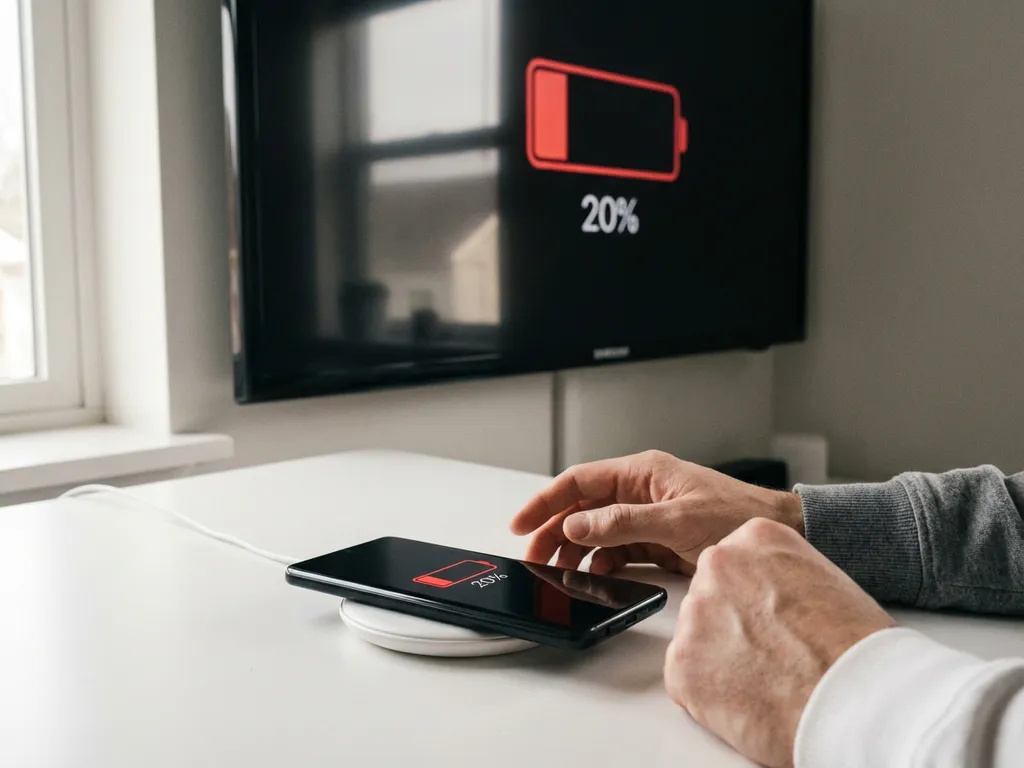
When your iPhone battery starts running low, you might notice screen mirroring behaving differently. Low Power Mode automatically kicks in to extend battery life, but this energy-saving feature can affect how your device connects to your TV. Understanding what happens in Low Power Mode helps you troubleshoot connection issues and decide when to adjust your settings for the best mirroring experience.
Whether you’re using AirBeamTV or other screen mirroring apps, knowing how power management affects your wireless connection can save you from frustrating interruptions during movie nights or important presentations.
What is iPhone Low Power Mode, and how does it affect screen mirroring?
iPhone Low Power Mode is a battery-saving feature that reduces background activity, limits performance, and disables certain functions when your battery drops to 20% or below. This mode affects screen mirroring by reducing processing power, limiting network activity, and potentially causing connection drops or quality issues.
When Low Power Mode activates, your iPhone makes several changes that directly affect iPhone screen mirroring performance. The device reduces CPU performance to conserve energy, which can slow down the encoding process needed to transmit your screen wirelessly. Background App Refresh is disabled, which can affect how mirroring apps maintain their connection to your TV.
Network activity also becomes more restricted in Low Power Mode. Your iPhone may reduce the frequency of network checks and limit data transmission to preserve battery life. Since screen mirroring requires a constant, stable Wi-Fi connection to send video and audio data to your TV, these network limitations can cause stuttering, lag, or complete disconnection.
The visual effects and animations that normally run smoothly on your iPhone may also appear choppy when mirrored to your TV during Low Power Mode. This happens because reduced processing power affects how quickly your device can render and transmit visual information.
Does screen mirroring still work when iPhone is in Low Power Mode?
Yes, screen mirroring typically continues to work when your iPhone enters Low Power Mode, but you may experience reduced performance, occasional connection drops, and lower video quality. The mirroring function itself remains active, though the overall experience becomes less reliable.
Most screen mirroring apps, including AirBeamTV, maintain basic functionality during Low Power Mode. You can still start a mirroring session, connect to your TV, and display content on the big screen. However, the experience differs noticeably from normal operation.
The connection between your iPhone and TV may become less stable during Low Power Mode. You might notice the mirrored display freezing temporarily, audio cutting out briefly, or the connection dropping entirely and requiring you to restart the mirroring session. These interruptions happen because Low Power Mode prioritizes battery conservation over maintaining consistent wireless connections. If you encounter persistent issues, check our knowledge base for troubleshooting tips.
Some users find that certain mirroring features become unavailable or unreliable in Low Power Mode. For example, audio mirroring might cut out while video continues, or the mirrored display might show a lower frame rate that makes motion appear jerky or delayed.
How does Low Power Mode change screen mirroring quality and performance?
Low Power Mode reduces screen mirroring quality by limiting video resolution, decreasing frame rates, and causing audio sync issues. Performance drops significantly, with increased lag, stuttering video, and potential connection instability as your iPhone prioritizes battery conservation over streaming quality.
Video quality takes the biggest hit during Low Power Mode. Your iPhone may reduce the resolution and frame rate of the mirrored content to conserve processing power and battery life. What normally streams in crisp HD may appear pixelated or blurry on your TV screen. Fast-moving content like sports or action movies is particularly affected, with motion appearing choppy or delayed.
Audio performance also degrades in Low Power Mode. You might experience audio that cuts out intermittently, doesn’t sync properly with the video, or sounds compressed. This happens because your iPhone reduces the quality of audio encoding to save battery power, and limited network activity can cause audio packets to arrive late or out of order.
The overall responsiveness of screen mirroring decreases substantially. When you tap something on your iPhone screen, it may take longer to appear on your TV. This lag becomes especially frustrating when trying to navigate apps, play games, or give presentations where timing matters. Unlike Android mirroring solutions that may handle power management differently, iPhone’s Low Power Mode creates specific challenges for wireless display.
Connection stability becomes unpredictable during Low Power Mode. Your mirroring session might work fine for several minutes, then suddenly drop the connection or freeze the display. These interruptions force you to restart the mirroring process, disrupting your viewing or presentation experience.
Should you turn off Low Power Mode for better screen mirroring?
Yes, turning off Low Power Mode significantly improves screen mirroring performance by restoring full processing power, network activity, and connection stability. However, this drains your battery faster, so consider plugging in your iPhone or ensuring you have sufficient charge before disabling Low Power Mode.
Disabling Low Power Mode immediately restores your iPhone’s full capabilities for screen mirroring. Your device can once again dedicate adequate processing power to encoding high-quality video and audio for transmission to your TV. Network restrictions lift, allowing for the consistent data flow needed for smooth mirroring performance. This improvement is particularly noticeable when compared to Mac screen mirroring, which typically doesn’t face the same battery-related limitations.
The improvement in mirroring quality becomes immediately noticeable when you turn off Low Power Mode. Video returns to its normal resolution and frame rate, audio sync issues disappear, and the lag between your iPhone actions and what appears on your TV decreases dramatically. Your mirroring session becomes much more reliable and enjoyable.
However, you need to weigh this improved performance against battery life. With Low Power Mode disabled, your iPhone will consume battery much faster, especially during intensive mirroring sessions. If you’re planning an extended mirroring session for a movie night or a long presentation, connecting your iPhone to a charger is the best solution. You can also use a universal remote control TV app to manage your TV without needing to interact with your iPhone constantly. For additional support with setup or troubleshooting, you can contact us for personalized assistance.
For shorter mirroring sessions, you might choose to keep Low Power Mode disabled temporarily, then re-enable it afterward to preserve battery life. This approach gives you the best mirroring experience when you need it while maintaining battery conservation for the rest of your day.
