




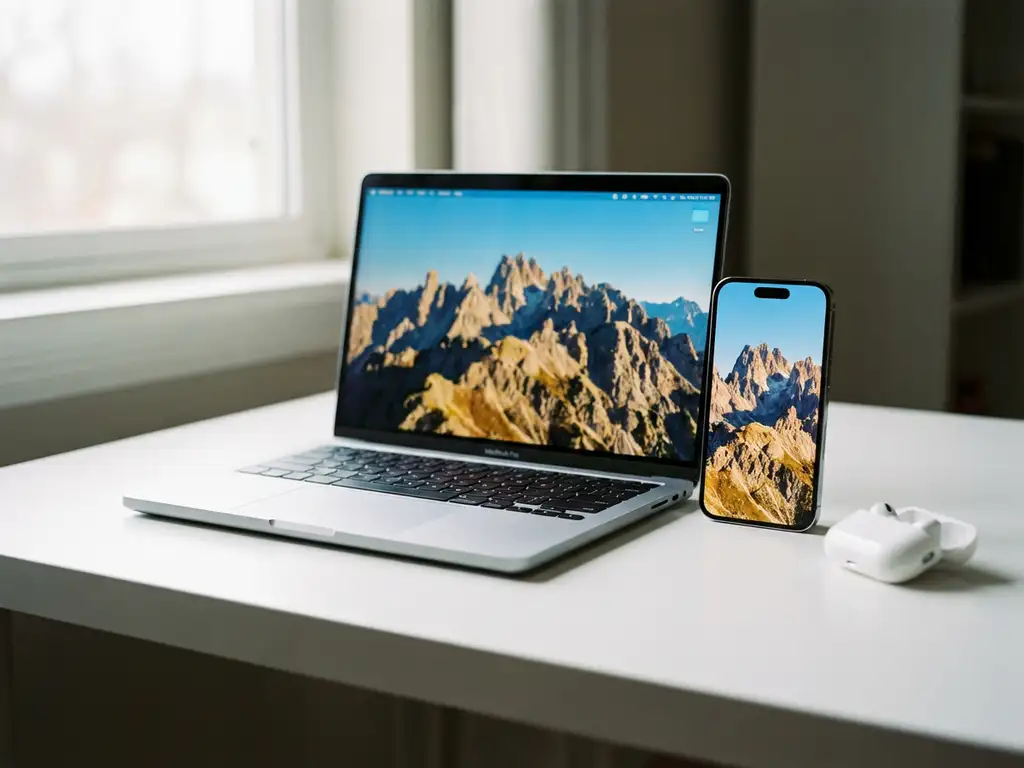
Mac screen mirroring and AirPlay are two different approaches to displaying your computer’s content on a TV. AirPlay is Apple’s proprietary wireless protocol that requires compatible hardware, such as an Apple TV, whereas screen mirroring uses third-party applications to cast your Mac’s display to many smart TVs without additional devices. Both achieve the same goal of wireless display sharing, but they use different technologies and have varying compatibility requirements.
What exactly is the difference between Mac screen mirroring and AirPlay?
AirPlay is Apple’s built-in wireless streaming protocol designed for Apple devices and certified hardware. Screen mirroring, however, refers to third-party software solutions that can display your Mac’s content on many smart TV brands without requiring Apple-specific hardware.
The fundamental difference lies in their technical approach. AirPlay creates a direct connection between your Mac and an Apple TV using Apple’s proprietary protocols, ensuring optimised performance within Apple’s ecosystem. This method provides excellent quality and low latency but limits you to Apple-certified devices.
Screen mirroring applications work differently by encoding your Mac’s display into a format that smart TVs can receive through their built-in Wi-Fi capabilities. These apps communicate directly with your television’s operating system, whether it’s Samsung’s Tizen, LG’s webOS, or Android TV. This approach broadens compatibility across dozens of TV brands without requiring any additional hardware purchases.
The setup processes also differ significantly. AirPlay requires you to own an Apple TV or an AirPlay-compatible smart TV, which can cost hundreds of pounds. Screen mirroring apps simply require downloading software to your Mac and connecting to the same Wi-Fi network as your television.
How does Mac screen mirroring work without AirPlay?
Mac screen mirroring without AirPlay relies on wireless display protocols that communicate directly with your smart TV’s operating system. These applications capture your Mac’s screen content, encode it into a compatible format, and transmit the data through your Wi-Fi network to your television’s built-in receiver.
The technical process begins when the mirroring app scans your local Wi-Fi network to identify available smart TVs. Modern televisions broadcast their presence using protocols such as UPnP or DLNA, allowing the Mac application to detect and connect to them automatically.
Once connected, the app continuously captures your Mac’s display buffer and compresses this visual data using efficient encoding algorithms. This compressed stream travels through your Wi-Fi router to your television, where the TV’s built-in software decodes and displays the content in real time.
Different TV brands require slightly different approaches. Samsung TVs use their Smart View protocol, whereas LG televisions use Screen Share technology. The mirroring application handles these variations automatically, adapting its communication method based on your specific TV model.
The entire process happens through software alone. Your Mac runs the mirroring application, while your smart TV uses its built-in capabilities to receive and display the content. No additional hardware, cables, or Apple TV devices are necessary for this wireless connection to function properly.
When should you use AirPlay versus screen mirroring for your Mac?
Choose AirPlay when you already own an Apple TV or an AirPlay-compatible smart TV and prioritise the highest possible video quality with minimal latency. AirPlay excels for gaming, detailed presentations, or situations where every millisecond of delay matters.
Screen mirroring is the better choice when you want broad compatibility without additional hardware costs. If you own a Samsung, LG, Sony, Panasonic, or virtually any other smart TV brand, screen mirroring apps provide immediate wireless casting capability.
Consider your content type as well. For streaming videos, browsing photos, or displaying presentations, screen mirroring delivers excellent quality while working with most modern smart TVs. The slight latency difference becomes negligible for these use cases.
Budget plays a significant role in this decision. AirPlay requires purchasing an Apple TV (starting around £149) or ensuring your smart TV specifically supports AirPlay 2. Screen mirroring apps typically cost under £15 and work with televisions you already own.
Your existing ecosystem matters too. If you’re heavily invested in Apple products and plan to stream content from multiple Apple devices, AirPlay provides seamless integration. However, if you use a mix of devices or want the flexibility to mirror Android phones and tablets as well, screen mirroring apps offer broader compatibility.
What are the advantages and limitations of each display method?
AirPlay advantages include superior video quality, minimal latency, and seamless integration with macOS. The protocol handles 4K content excellently and provides reliable performance for demanding applications such as gaming or professional presentations.
However, AirPlay’s limitations centre on compatibility and cost. You’re restricted to an Apple TV or specific smart TV models that support AirPlay 2. This hardware requirement adds significant expense and limits your TV choices when purchasing new equipment.
Screen mirroring apps offer remarkable flexibility and cost-effectiveness. They work with virtually any smart TV brand manufactured in recent years, require no additional hardware, and often cost less than £15 for lifetime access. Setup takes minutes rather than requiring new hardware installation.
The main limitation of screen mirroring is slightly higher latency compared with AirPlay. This delay rarely affects video streaming or presentations but might impact fast-paced gaming. Additionally, video quality depends on your Wi-Fi network strength and the TV’s processing capabilities.
Both methods require stable Wi-Fi connections, but screen mirroring can be more sensitive to network congestion because it relies entirely on your router’s performance. AirPlay benefits from Apple’s optimised protocols, which handle network variations more gracefully.
How do you set up Mac screen mirroring when AirPlay isn’t available?
Setting up Mac screen mirroring without AirPlay involves downloading a compatible app and connecting through your Wi-Fi network. The process typically takes under five minutes and requires no technical expertise or additional hardware.
Download a screen mirroring app designed for your specific TV brand from the Mac App Store. Popular options include apps for Samsung, LG, Sony, and other major manufacturers. Ensure both your Mac and smart TV are connected to the same Wi-Fi network before proceeding.
Open the mirroring application on your Mac, which will automatically scan for available TVs on your network. Select your television from the drop-down menu that appears. Some TV brands may require downloading a companion receiver app on your television, though most modern smart TVs have built-in compatibility.
Click “Start Mirroring” in the Mac application, then select your TV’s name when prompted. The app will establish the connection and begin broadcasting your Mac’s screen to the television. You can also enhance your setup with a universal remote control TV app for convenient device management. Your display should appear on the TV within seconds of starting the broadcast.
If connection issues occur, verify that both devices are using the same Wi-Fi network, then restart both the Mac app and your television. Ensure your Wi-Fi signal remains strong, as weak connections can cause display interruptions or poor video quality during mirroring sessions. For additional troubleshooting help, consult our comprehensive knowledge base.
How AirBeamTV helps with Mac screen mirroring
AirBeamTV provides the perfect solution for Mac users who want to mirror their screens to smart TVs without the limitations and costs of AirPlay. Our comprehensive suite of mirroring apps delivers reliable wireless casting to virtually any smart TV brand, eliminating the need for expensive Apple TV hardware or AirPlay-compatible televisions.
AirBeamTV solves your Mac screen mirroring challenges through:
- Universal compatibility – Works with Samsung, LG, Sony, Panasonic, and over 20 other TV brands
- No additional hardware required – Connect directly to your existing smart TV
- One-time purchase – Affordable apps starting from £4.99 with lifetime access
- Easy setup – Connect in under 60 seconds with automatic TV detection
- High-quality streaming – Optimised encoding for smooth video playback and presentations
- Regular updates – Continuous improvements and support for new TV models
Ready to experience seamless Mac screen mirroring without the Apple ecosystem restrictions? Whether you’re looking to mirror your iPhone or iPad or simply need assistance with setup, our team is here to help. Contact us today or download your TV-specific AirBeamTV app and start casting your Mac to your smart TV in minutes, not hours.
