




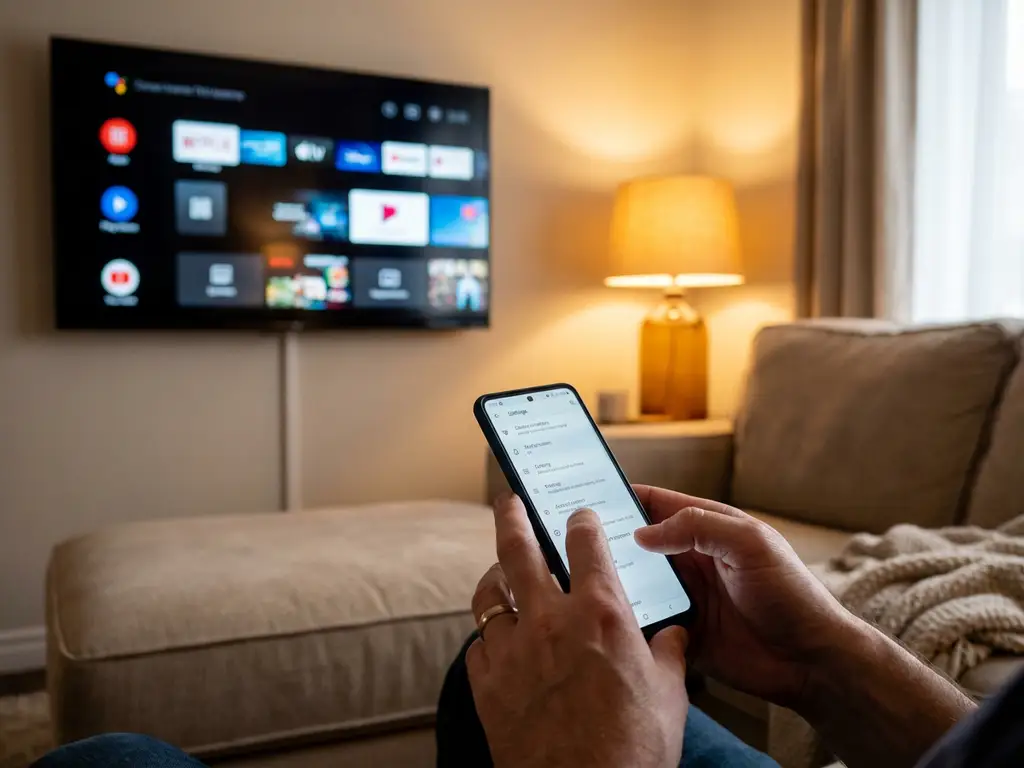
When you’re casting your Android device to the TV, keeping your family’s viewing safe becomes a top priority. Android screen mirroring opens up a world of entertainment on the big screen, but it also raises important questions about what content gets displayed and who controls it.
The good news is that several layers of parental controls can work alongside your screen mirroring setup. From built-in Android features to smart TV restrictions and third-party monitoring apps, you have multiple options for creating a family-friendly viewing experience while enjoying the convenience of wireless casting.
What parental controls are built into Android screen mirroring?
Android devices include several built-in parental controls that automatically extend to screen mirroring sessions. Screen time controls, app restrictions, and content-filtering settings on your Android device will carry over when you cast your screen to the TV.
The most effective built-in control is Google Family Link, which lets parents manage their child’s device remotely. When a child’s device is set up with Family Link restrictions, these limitations remain active during screen mirroring. Parents can block specific apps, set time limits, and filter content that appears both on the device and when cast to the television.
Android’s restricted user profiles also work with screen mirroring. If you’ve set up a restricted profile for your child with limited app access, only those approved applications will be available to mirror. This creates a controlled environment in which kids can cast only pre-approved content to the family TV.
Additionally, many Android devices include a “Kids Mode” or similar feature that creates a sandbox environment. When this mode is active and the device is mirrored, only child-appropriate content is available on the big screen.
How do smart TV parental controls work with screen mirroring?
Smart TV parental controls operate independently of your Android device and can provide an additional layer of protection during screen mirroring. Most modern smart TVs include built-in parental control systems that can restrict content based on ratings, block specific channels, or limit viewing during certain hours.
However, these TV-based controls have limitations when it comes to mirrored content. Since screen mirroring essentially treats your TV as an external display, the television’s parental controls typically cannot filter or block content coming from your Android device. The TV sees the mirrored content as a single input signal, not individual apps or videos.
Some newer smart TV models do offer more sophisticated controls. Samsung’s Smart TV platform, for example, can detect certain types of content and apply age-appropriate filtering even during screen mirroring sessions. LG and Sony offer similar features in their latest models, though effectiveness varies by content type.
The most reliable approach is to combine your smart TV’s time-based restrictions with device-level controls. You can set your TV to block all inputs during homework time or bedtime, while relying on your Android device’s parental controls to filter the actual content being mirrored.
What third-party parental control apps work with Android casting?
Several third-party parental control applications maintain their restrictions during Android screen mirroring sessions. Qustodio, Norton Family, and Bark are among the most effective options, and they continue monitoring and filtering content when your device is cast to the TV.
Qustodio stands out for its comprehensive approach to screen mirroring scenarios. The app can block inappropriate websites, limit social media usage, and restrict specific applications even when they’re being displayed on your television. Parents receive real-time alerts about what content is being accessed and can remotely pause or block mirroring sessions.
Circle Home Plus offers network-level filtering that works particularly well with screen mirroring. Since it operates at the router level, Circle can monitor and control all internet traffic from your Android device, regardless of whether content is viewed on the device itself or cast to the TV.
Bark focuses on content monitoring and can detect potentially harmful material in real time during mirroring sessions. While it doesn’t block content automatically, it sends immediate alerts to parents when concerning material is accessed, allowing for quick intervention.
Screen Time (the third-party app, not the built-in feature) also maintains its restrictions during casting. Parents can set daily limits for specific apps, and these limits apply whether the app is used on the device or mirrored to the television.
How can parents monitor what’s being screen mirrored?
Parents can monitor screen mirroring activity through device logs, router monitoring, and specialized tracking applications. Most Android devices maintain a history of mirroring sessions, including which apps were used and for how long.
The most straightforward monitoring method is to check your Android device’s screen mirroring history. In your device’s settings under “Connected devices” or “Screen mirroring,” you’ll find logs of recent casting sessions. This shows when mirroring occurred and which TV or device was used as the display.
Router-based monitoring provides more comprehensive oversight. Many modern routers include parental control dashboards that show all network activity, including data from screen mirroring sessions. You can see which websites were accessed, how much bandwidth was used, and the duration of different activities.
Google Family Link offers detailed activity reports that include screen mirroring usage. Parents can see which apps were used during casting sessions and receive weekly summaries of their child’s viewing habits across all devices and displays.
For real-time monitoring, apps like Spyzie or mSpy can provide live screenshots and activity feeds during screen mirroring sessions. These tools are more invasive but offer complete visibility into what content is being displayed on your TV. You can also use a universal remote control TV app to manage and oversee what’s playing across your connected devices.
What are the limitations of parental controls with screen mirroring?
Parental controls face several significant limitations when applied to screen mirroring scenarios. The primary challenge is that mirrored content often bypasses traditional filtering mechanisms because the TV receives a direct video feed rather than individual app data.
Content filtering becomes less effective with screen mirroring because many parental control systems cannot analyze video streams in real time. While these tools can block specific apps or websites on the Android device, they struggle to filter inappropriate content within allowed applications once that content is being mirrored.
Age-verification systems also become problematic during screen mirroring. Many streaming services rely on account-level age verification, but when content is mirrored from a parent’s device, these safeguards may not apply. A child could potentially access mature content through a parent’s logged-in accounts.
Technical workarounds present another limitation. Tech-savvy children might use alternative browsers, private browsing modes, or different apps to circumvent restrictions during mirroring sessions. The larger TV screen can also make it harder for parents to quickly identify inappropriate content from across the room.
Network-based controls face challenges with encrypted traffic and peer-to-peer content sharing. Some apps use encryption that prevents routers and monitoring software from analyzing the actual content being transmitted during screen mirroring sessions.
The most effective approach combines multiple layers of control while maintaining open communication with children about appropriate content and responsible device usage. For additional guidance on implementing these solutions, check out the comprehensive knowledge base resources available. If you’re also using other devices for family entertainment, consider exploring options to mirror iPhone iPad screen or mirror your Mac screen with similar parental controls. No single parental control solution provides complete protection during screen mirroring, making a comprehensive strategy essential for family digital safety. For personalized assistance with setting up these controls, you can always contact us for expert support, and learn more about AirBeam TV’s family-friendly mirroring solutions.
