




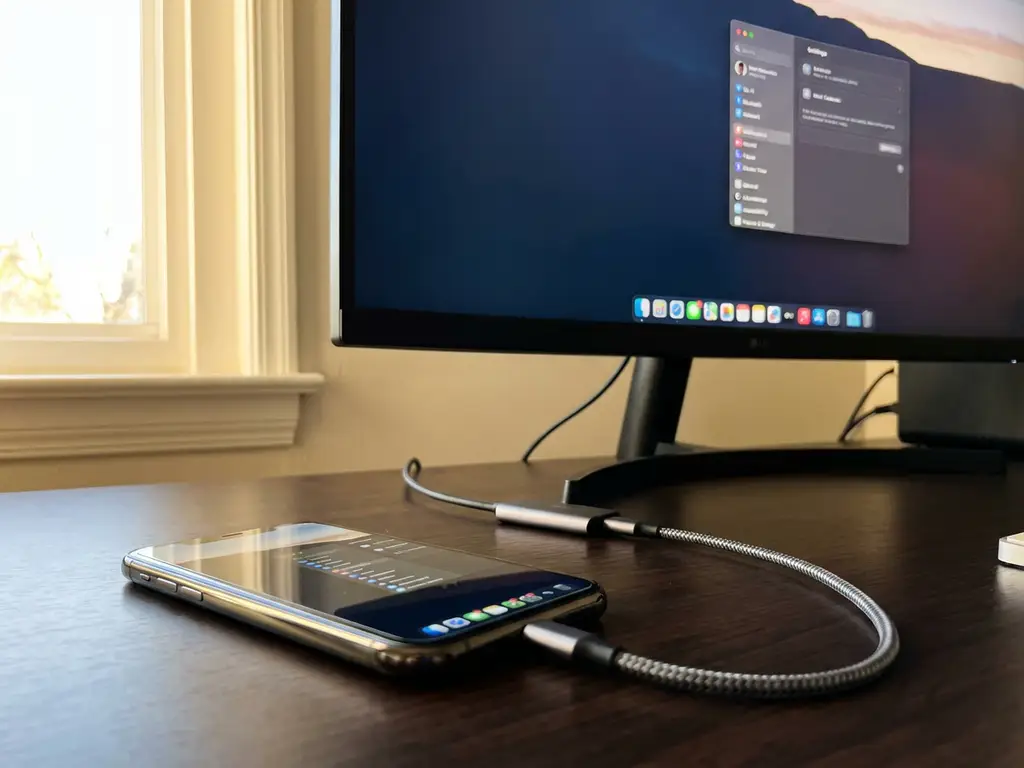
Several key factors affect iPhone screen mirroring quality, including your device settings, Wi-Fi network performance, the specific apps you’re mirroring, and your overall setup. Display resolution, brightness levels, Low Power Mode, and network connectivity settings all directly impact how crisp and smooth your mirrored content appears on your TV.
What iPhone settings directly impact screen mirroring quality?
Your iPhone’s display resolution, brightness settings, Low Power Mode status, and Wi-Fi connectivity configuration are the primary device settings that determine mirroring quality. These settings directly control how your device processes and transmits visual information to your TV.
Display resolution plays a crucial role in mirroring clarity. When your iPhone is set to higher resolution modes, the mirrored image appears sharper on your TV. However, higher resolutions also require more processing power and bandwidth, which can sometimes cause lag if your network isn’t robust enough to handle the data transfer.
Brightness settings affect how your mirrored content appears on the TV. If your iPhone’s brightness is set too low, the mirrored display may appear dim or washed out. Conversely, maximum brightness can sometimes cause oversaturation when mirrored to certain TV models.
Low Power Mode significantly impacts mirroring performance by reducing your iPhone’s processing capabilities. When enabled, this mode can cause choppy video playback, delayed audio synchronisation, and reduced frame rates during screen mirroring sessions. Always disable Low Power Mode before starting important iPhone screen mirroring sessions.
Wi-Fi connectivity settings on your iPhone also matter. Ensure your device connects to the 5 GHz band when available, as this provides better bandwidth for high-quality mirroring than the more congested 2.4 GHz band.
How does your Wi-Fi network affect iPhone screen mirroring performance?
Your Wi-Fi network’s bandwidth, router placement, network congestion, and frequency band directly determine mirroring quality. A stable connection with sufficient speed ensures smooth, high-definition streaming without interruptions or quality drops.
Bandwidth requirements vary depending on what you’re mirroring. Standard-definition content needs around 3–5 Mbps, while high-definition video requires 10–15 Mbps for optimal quality. If multiple devices share your network simultaneously, insufficient bandwidth can cause pixelation, buffering, and audio sync issues.
Router placement significantly affects signal strength and mirroring stability. Position your router centrally between your iPhone and TV, avoiding obstacles like thick walls or metal objects that can interfere with signal transmission. Poor signal strength often results in connection drops and reduced video quality.
Network congestion from other connected devices impacts the bandwidth available for mirroring. Smart home devices, other phones, tablets, and computers all compete for network resources. Consider temporarily disconnecting unnecessary devices during important mirroring sessions.
The difference between the 2.4 GHz and 5 GHz bands is substantial for mirroring performance. The 5 GHz band offers faster data transfer speeds and less congestion, making it ideal for high-quality video streaming. However, it has a shorter range than 2.4 GHz, so make sure you’re close enough to your router.
Both your iPhone and TV must connect to the same Wi-Fi network for mirroring to work properly. This shared connection enables the data transfer necessary to display your iPhone screen on your TV.
Why does iPhone screen mirroring quality vary between different apps?
Different apps use varying levels of hardware acceleration, content protection, and optimisation techniques that directly affect mirroring quality. Video streaming apps, games, presentations, and web browsing each place different demands on your device’s processing capabilities.
Video streaming apps like YouTube often provide the smoothest mirroring experience because they’re optimised for video playback and use hardware acceleration effectively. These apps can maintain consistent frame rates and audio synchronisation during mirroring sessions.
Gaming apps typically present the most challenging mirroring scenarios due to their real-time processing requirements and high frame rates. Fast-paced games may experience input lag or reduced visual quality when mirrored, as the additional processing overhead can impact performance.
Presentation apps and document viewers usually mirror well because they display relatively static content that doesn’t require intensive processing. However, animations and transitions within presentations may appear choppy if your network connection isn’t optimal.
Web browsing quality varies significantly depending on the content being displayed. Static websites mirror smoothly, while video-heavy pages or interactive content may experience quality degradation. The Chrome browser, in particular, supports casting some streaming platforms more effectively than Safari for certain services.
Content protection mechanisms in some apps can also limit mirroring quality or block mirroring entirely. Certain streaming services implement digital rights management that prevents high-quality mirroring to protect copyrighted content.
What can you do when iPhone screen mirroring quality is poor?
Restart your iPhone and TV, optimise your Wi-Fi connection, close unnecessary apps, and check for software updates to improve poor mirroring quality. These troubleshooting steps address the most common causes of degraded performance.
Restarting your devices often resolves temporary glitches affecting mirroring quality. Power off your iPhone completely, wait 30 seconds, then restart it. Similarly, unplug your TV for a minute before reconnecting it. This clears cached data and resets network connections that may be causing issues.
Network optimisation involves several steps. Move closer to your router, switch to the 5 GHz band if available, and temporarily disconnect other devices. You can also restart your router by unplugging it for 30 seconds, which often resolves connectivity issues affecting mirroring performance.
App management significantly impacts available system resources. Close background apps that aren’t needed during mirroring sessions, particularly those that use significant processing power or network bandwidth. This frees up resources for smooth screen mirroring.
Software updates frequently include improvements to screen mirroring functionality. Check for iOS updates on your iPhone and firmware updates for your TV. Outdated software can cause compatibility issues that affect mirroring quality.
Consider alternative mirroring solutions if problems persist. Screen mirroring apps like AirBeamTV offer dedicated solutions for specific TV brands and may provide better performance than built-in mirroring features. These apps often include optimisations for particular TV models and can deliver more reliable connections.
If you continue to experience issues, check your internet speed using a universal remote control TV app. Insufficient bandwidth is often the culprit behind poor mirroring quality, and upgrading your internet plan may be necessary for consistent high-definition mirroring. For additional troubleshooting tips, visit our comprehensive knowledge base.
How AirBeamTV helps with iPhone screen mirroring quality
AirBeamTV provides a reliable solution for optimizing iPhone screen mirroring quality with dedicated apps designed for specific TV brands and models. Whether you need to mirror your Mac screen or mirror Android to TV, our technology addresses the common issues that cause poor mirroring performance through:
- TV-specific optimization: Each app is tailored to work seamlessly with particular TV brands, ensuring maximum compatibility and performance
- Enhanced connection stability: Advanced algorithms maintain consistent connections even on challenging Wi-Fi networks
- Reduced latency: Optimized data transmission protocols minimize lag for gaming and interactive content
- Automatic quality adjustment: Smart bandwidth management adapts streaming quality based on your network conditions
- Simple setup process: No additional hardware required – just download and start mirroring within minutes
Ready to experience crystal-clear iPhone screen mirroring? Download AirBeamTV today and transform your viewing experience with professional-grade mirroring technology designed specifically for your TV model. If you have questions about our solutions, feel free to contact us for personalized support.
