




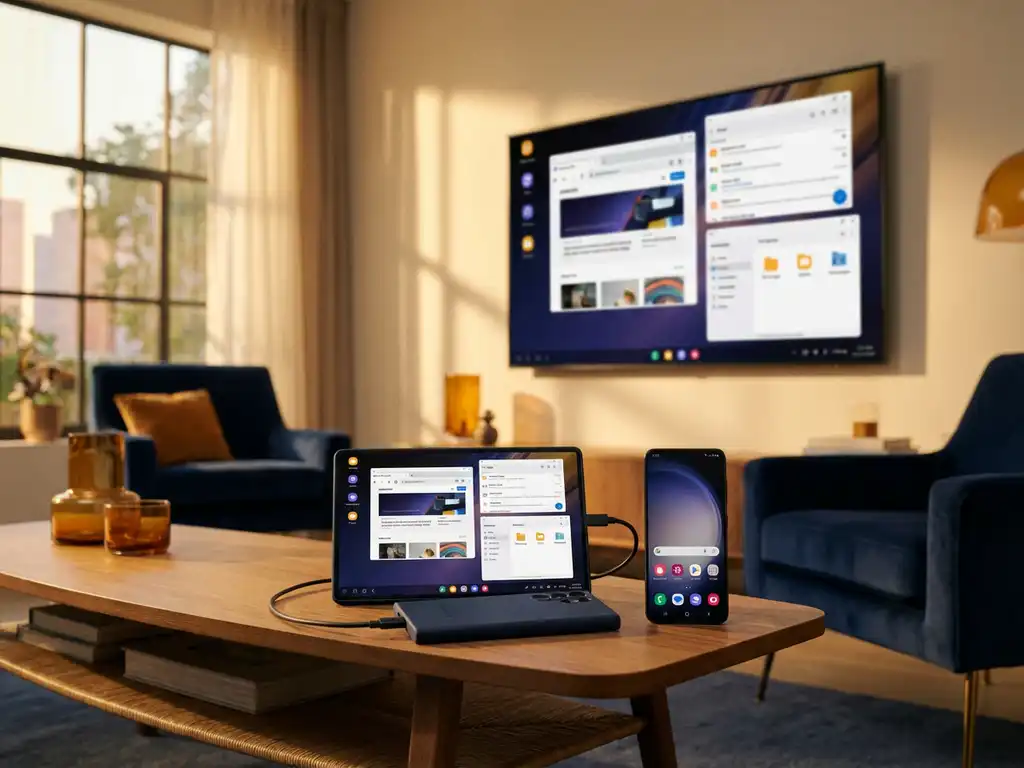
When it comes to displaying your Android device on a big screen, you have two main options: traditional Android screen mirroring and Samsung’s DeX mode. While both let you use your phone with a larger display, they work in completely different ways and serve different purposes.
Understanding the difference between these two approaches can help you choose the right solution for your needs, whether you’re streaming videos, giving presentations, or trying to be more productive.
What is Android mirroring, and how does it work?
Android mirroring displays an exact copy of your phone or tablet screen on your TV or monitor wirelessly. Everything you see on your device appears simultaneously on the larger screen, including apps, videos, photos, and games.
The mirroring process works over your Wi-Fi network, sending your device’s display data to compatible smart TVs or streaming devices. With apps like AirBeamTV, you simply download the screen mirroring app, connect both your Android device and TV to the same Wi-Fi network, select your TV from the app’s menu, and tap “Start Mirroring.” Your phone’s screen instantly appears on the television.
This wireless connection lets you stream content from any app on your device, including YouTube, Netflix, social media, or games. The mirrored display maintains the same aspect ratio and orientation as your phone, so when you rotate your device, the TV display rotates too. No cables, additional hardware, or complex setup required.
What is Samsung DeX, and what makes it different?
Samsung DeX transforms your Samsung phone or tablet into a desktop-like computing experience when connected to an external display. Instead of simply mirroring your phone screen, DeX creates a separate desktop interface with windows, a taskbar, and mouse cursor support.
DeX mode converts your mobile apps into desktop-style windows that you can resize, move around, and run simultaneously. You get a Start menu, desktop shortcuts, and the ability to multitask with multiple apps open at once, similar to using a Windows PC or a Mac. Your phone essentially becomes a computer tower, powering a full desktop experience.
This desktop mode requires either a DeX Station, DeX Pad, or a compatible USB-C-to-HDMI adapter to connect to your monitor or TV. Some newer Samsung TVs also support a wireless DeX connection. While your phone powers the desktop experience, you can still use it independently for calls, messages, and other tasks.
What’s the main difference between mirroring and DeX mode?
The main difference is that Android screen mirroring shows your phone exactly as it appears on your device, while Samsung DeX creates an entirely different desktop computing interface designed for productivity and multitasking.
With mirroring, you see your phone’s home screen, apps in mobile format, and everything responds to touch gestures as if you’re using your phone. The experience is identical whether you’re looking at your phone or the TV screen. DeX mode, however, transforms your mobile interface into a desktop environment with resizable windows, keyboard and mouse support, and desktop-style app layouts.
Mirroring works great for entertainment, sharing photos, or casual browsing since it maintains the familiar mobile experience. DeX excels at productivity tasks like document editing, presentations, or any situation where you need to run multiple apps simultaneously in separate windows.
Which devices support Samsung DeX vs. Android mirroring?
Samsung DeX works only with select Samsung Galaxy devices, including flagship phones from the Galaxy S8 series onward, Galaxy Note devices from the Note8 onward, and certain Galaxy Tab tablets. DeX requires specific hardware capabilities and Samsung’s proprietary software.
Android mirroring, on the other hand, works with virtually any Android device, regardless of brand or model. Whether you have a Samsung Galaxy, Google Pixel, OnePlus, Xiaomi, Vivo, or any other Android phone or tablet, you can use screen mirroring apps to display your screen wirelessly on compatible TVs.
For display compatibility, DeX typically requires monitors or TVs with HDMI inputs or specific Samsung smart TVs with wireless DeX support. Android mirroring works with a much broader range of devices, including Samsung, LG, Sony, and Panasonic smart TVs, as well as streaming devices like Chromecast, Fire TV, and Roku. If you need help setting up mirroring on specific devices, check our knowledge base for detailed guides.
How do you set up Samsung DeX compared to Android mirroring?
Setting up Samsung DeX requires either a wired connection using a DeX Station, DeX Pad, or USB-C-to-HDMI adapter, or a wireless connection to compatible Samsung smart TVs. You connect your phone to the dock or adapter, which then connects to your monitor via an HDMI cable.
Android mirroring setup is much simpler and requires no additional hardware. You download a screen mirroring app like AirBeamTV from the Google Play Store, ensure both your Android device and TV are connected to the same Wi-Fi network, open the app, select your TV from the available devices, and tap “Start Mirroring.” Your screen appears instantly on the TV. For iPhone users, the process is equally straightforward when you mirror iPhone iPad screen.
DeX setup can also involve configuring your desktop preferences, connecting a universal remote control TV app for optimal use, and potentially installing additional software. Mirroring works immediately after connection, with no configuration needed.
Which is better for productivity: DeX or Android mirroring?
Samsung DeX is significantly better for productivity tasks due to its desktop interface, multitasking capabilities, and support for keyboard and mouse input. DeX lets you work with multiple documents simultaneously, use desktop versions of apps, and maintain a workflow similar to that of traditional computers.
DeX excels at tasks like editing presentations, working with spreadsheets, writing documents, or any scenario that requires multiple apps open simultaneously. The desktop interface makes it practical for extended work sessions, video conferences, and professional presentations.
Android mirroring is better suited for entertainment, sharing content with groups, or displaying mobile apps on a larger screen. While you can certainly use mirrored productivity apps, the mobile interface and touch-based navigation aren’t optimized for serious work tasks. However, mirroring offers universal compatibility and works great for streaming videos, showing photos, or casual browsing when you want the convenience of a bigger screen without changing your familiar mobile experience. If you have questions about which solution works best for your specific needs, feel free to contact us for personalized guidance.
