




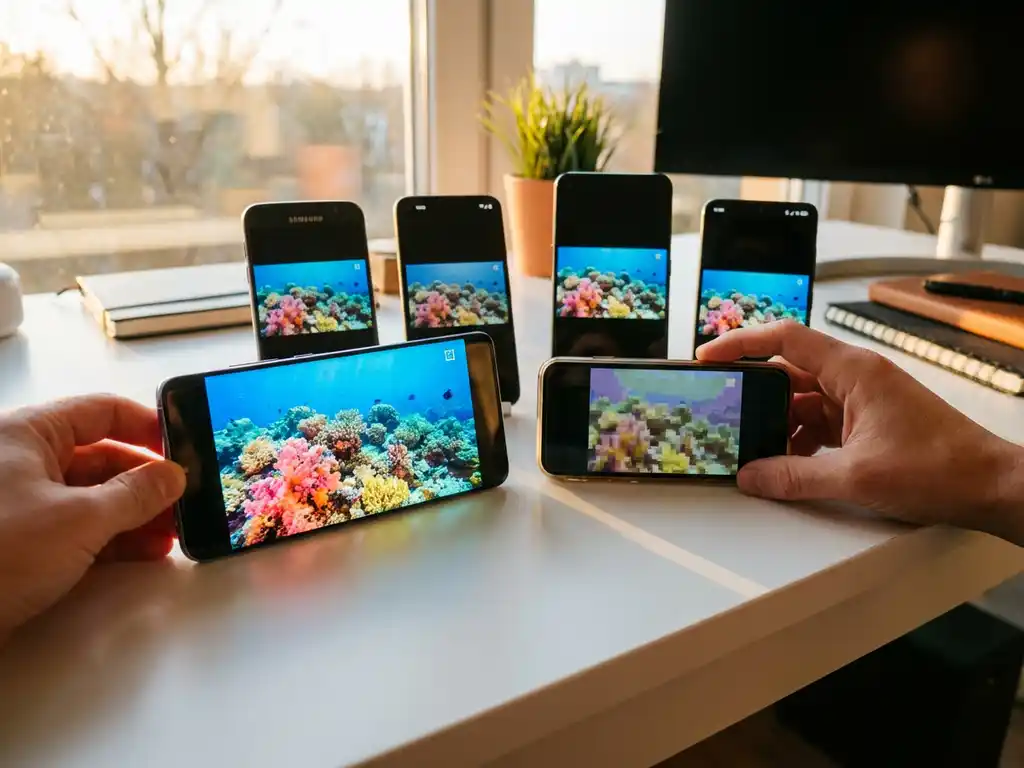
Android screen mirroring quality can vary dramatically depending on the device and TV you’re using. While the concept seems simple enough—wirelessly displaying your phone or tablet screen on your television—the reality involves multiple technical factors that different manufacturers handle in their own ways.
Understanding why these quality differences exist can help you troubleshoot issues and make better choices when setting up your wireless display. Let’s explore the key factors that influence Android screen mirroring performance across different brands and setups.
What causes Android screen mirroring quality to differ between manufacturers?
Android screen mirroring quality varies between manufacturers due to differences in hardware capabilities, software optimization, and the specific mirroring protocols each brand implements. Each manufacturer makes different choices about processing power, antenna design, and how it handles wireless data transmission.
The primary factors behind these quality differences include the device’s Wi-Fi chip quality, the processing power allocated to screen encoding, and how efficiently the manufacturer’s software compresses video data. Premium Android devices typically include higher-quality wireless components and more powerful processors dedicated to the demanding task of real-time screen encoding.
Software optimization plays an equally important role. Some manufacturers invest heavily in refining their mirroring algorithms, while others treat it as a secondary feature. This explains why a newer budget phone might struggle with smooth mirroring while an older flagship device handles it effortlessly.
Memory management also significantly impacts performance. Devices with more RAM can allocate sufficient resources to screen mirroring without slowing down other apps, while budget devices often struggle to balance multiple tasks simultaneously.
How do different Android TV brands affect mirroring performance?
Different Android TV brands affect mirroring performance through variations in receiver capabilities, processing power, and compatibility with various mirroring protocols. Samsung, LG, Sony, and other major TV manufacturers each take their own approach to handling incoming wireless display signals.
The TV’s built-in processor determines how quickly it can decode and display mirrored content. Higher-end smart TVs typically include more powerful chips that can handle HD video streams without stuttering or lag. Budget TVs often struggle with the computational demands of real-time video processing.
Network connectivity also varies significantly between TV brands. Some manufacturers include superior Wi-Fi antennas and network processing capabilities, while others prioritize cost savings over performance. This directly impacts how smoothly your Android screen mirroring experience will be.
Different TV brands also support different mirroring standards with varying levels of optimization. While most modern smart TVs support Miracast, the quality of implementation varies considerably between manufacturers, affecting everything from connection stability to video quality.
Why does screen mirroring lag vary between Android devices?
Screen mirroring lag varies between Android devices primarily due to differences in processing power, RAM allocation, and the efficiency of each device’s video encoding capabilities. Devices with faster processors and more available memory can encode and transmit screen data with minimal delay.
The device’s chipset plays a crucial role in determining lag levels. Flagship processors, such as the Snapdragon 8 series or Samsung Exynos chips, include dedicated hardware for video encoding, significantly reducing the processing time required for screen mirroring. Budget devices often rely on software-only encoding, which creates noticeable delays.
Network processing capabilities also contribute to lag differences. Some Android devices include superior Wi-Fi chips that can handle the high bandwidth requirements of screen mirroring more efficiently. Others may struggle to maintain stable connections, leading to stuttering or delayed video transmission.
Background app activity affects lag as well. Devices running multiple apps simultaneously may not have sufficient resources available for smooth screen mirroring, while phones with better memory management can maintain consistent performance even with other apps running.
What’s the difference between Miracast and other mirroring protocols?
Miracast is a direct wireless connection standard that creates a dedicated link between your Android device and TV, while other protocols, such as Chromecast or AirPlay, rely on your existing Wi-Fi network to transmit data. This fundamental difference affects both setup complexity and performance characteristics.
Miracast establishes a peer-to-peer connection, meaning your phone communicates directly with your TV without routing through your home router. This can provide lower latency but requires both devices to support the Miracast standard. Many Android devices and smart TVs include built-in Miracast support.
Network-based protocols, such as those used by dedicated screen mirroring apps, route data through your Wi-Fi network. This approach offers greater flexibility and often better compatibility across different device combinations, but performance depends heavily on your network’s speed and stability.
The choice between protocols often comes down to convenience versus performance. While Miracast might offer slightly better performance when it works perfectly, app-based solutions typically provide more reliable connections across a wider range of device combinations, making them more practical for everyday use.
How can you improve Android screen mirroring quality?
You can improve Android screen mirroring quality by ensuring both devices are connected to a strong Wi-Fi network, closing unnecessary background apps, and positioning your devices closer to your router. These simple steps address the most common causes of poor mirroring performance.
Network optimization provides the biggest improvement for most users. Connect both your Android device and TV to a 5 GHz Wi-Fi network, if available, as it typically offers less congestion and higher bandwidth than 2.4 GHz networks. Position your router centrally, and ensure no physical obstacles block the signal path.
Device preparation also makes a significant difference. Close apps you’re not actively using to free up processing power and memory for screen mirroring. Restart your Android device if you notice performance degrading over time, as this clears temporary files and refreshes system resources.
Consider using dedicated screen mirroring apps designed for your specific TV brand, as these often provide better optimization than generic solutions. Apps like AirBeamTV offer specialized versions for different TV manufacturers, potentially delivering superior performance compared to built-in mirroring options.
For the smoothest experience, ensure both your Android device and TV have the latest software updates installed, as manufacturers regularly improve mirroring performance through firmware updates. You can also enhance your setup with a universal remote control TV app for easier device management. If you’re experiencing persistent issues, you may want to consult our knowledge base for detailed troubleshooting guides, or consider mirroring from a Mac if you have access to alternative devices. For additional support, you can always contact us for personalized assistance.
