




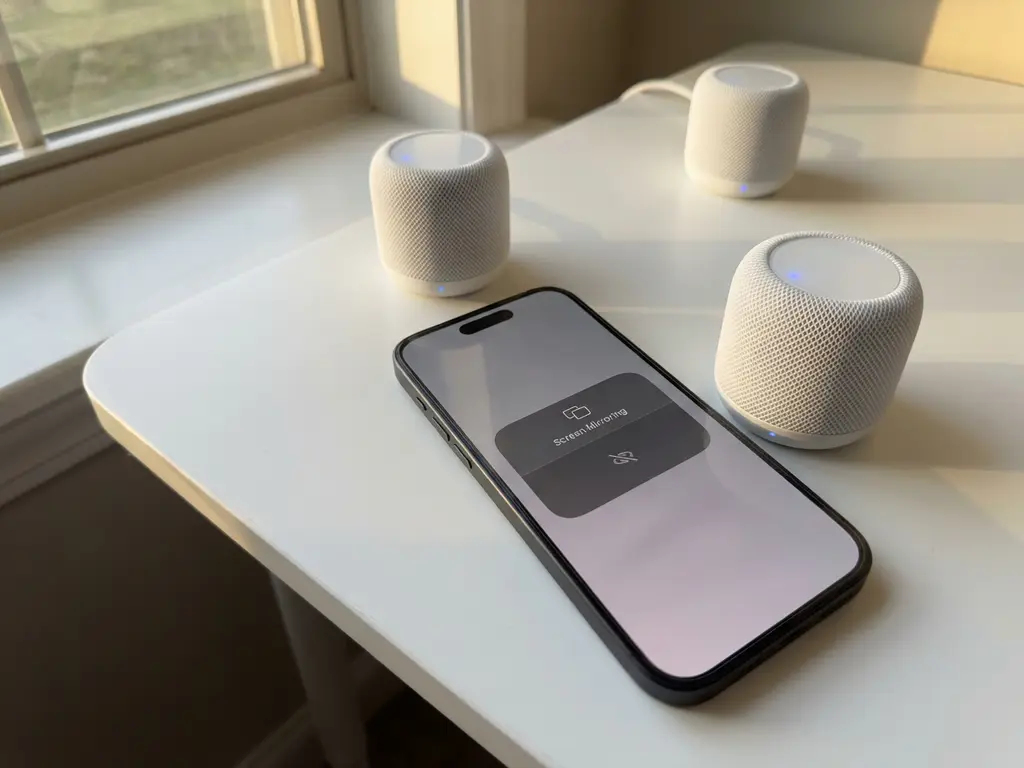
Mesh networks promise better Wi-Fi coverage throughout your home, but they can create unexpected headaches when you’re trying to mirror your iPhone screen to your TV. If you’ve noticed your screen mirroring cutting out, lagging, or refusing to connect entirely after upgrading to a mesh system, you’re not alone. The way mesh routers handle device connections can interfere with the smooth communication your iPhone needs to maintain a stable mirroring session.
Understanding why these issues happen and how to fix them can save you from the frustration of interrupted movie nights or failed presentations. Let’s break down what’s really going on with your mesh network and your iPhone’s screen mirroring capabilities.
What is a mesh network, and how does it affect iPhone screen mirroring?
A mesh network uses multiple router nodes placed throughout your home to create one large Wi-Fi network with seamless coverage. Unlike traditional routers that broadcast from a single point, mesh systems automatically move your devices between nodes as you walk around, ensuring you always have the strongest signal possible.
However, this automatic switching can disrupt iPhone screen mirroring because your phone and TV might end up connected to different mesh nodes. When your iPhone connects to one node and your smart TV connects to another, they may effectively be on separate network segments. This can create communication barriers that cause mirroring apps to lose the connection, lag, or fail to connect in the first place.
The problem becomes more noticeable with screen mirroring because it requires constant, real-time data transfer between your iPhone and TV. Even a brief interruption while your phone switches between mesh nodes can cause the mirroring session to drop. Traditional web browsing isn’t affected in the same way because it can tolerate small connection gaps without you noticing.
Why does my iPhone lose connection when screen mirroring on mesh Wi-Fi?
Your iPhone loses connection during screen mirroring on mesh Wi-Fi primarily because automatic band steering and node switching interrupt the data stream between your phone and TV. Mesh systems constantly optimize connections by moving devices between the 2.4 GHz and 5 GHz bands or between different mesh nodes, but screen mirroring requires stable, uninterrupted communication.
When your iPhone switches from one mesh node to another, there’s a brief moment when the connection drops and reconnects. During this handoff, your screen mirroring app can lose contact with your TV, causing the session to fail. This happens more frequently on mesh networks because they’re designed to aggressively manage connections for optimal coverage rather than for session stability.
Another common issue occurs when your iPhone and TV connect to different mesh nodes that don’t communicate efficiently with each other. Some mesh systems enable what’s often called “client isolation,” where devices on different parts of the network can’t see each other properly. This can make it impossible for your iPhone to discover your TV or maintain a stable mirroring connection.
The 5 GHz band, which many mesh systems prefer for faster speeds, can also cause problems. While 5 GHz offers better performance, it has a shorter range and doesn’t penetrate walls as well as 2.4 GHz. If your iPhone keeps switching between bands or loses the 5 GHz signal, your mirroring session will suffer.
How do you fix iPhone screen mirroring problems with mesh routers?
The most effective fix is to connect both your iPhone and TV to the same mesh node and frequency band by disabling band steering and using a dedicated 2.4 GHz network. Access your mesh router’s settings through its app or web interface, create separate network names for the 2.4 GHz and 5 GHz bands, then manually connect both devices to the same 2.4 GHz network.
Start by logging into your mesh system’s admin panel. Look for wireless settings or advanced Wi-Fi options. Most mesh systems combine both frequency bands under one network name by default, but you’ll want to separate them. Create distinct names like “YourNetwork_2.4” and “YourNetwork_5” so you can choose which band each device uses.
Next, disable any “Smart Connect,” “band steering,” or “automatic optimization” features. These are the culprits that keep moving your devices around. You want full control over where your iPhone and TV connect. Once you’ve made these changes, restart your mesh system and let it fully boot up before proceeding.
Connect both your iPhone and smart TV to the 2.4 GHz network you created. The 2.4 GHz band is slower but more stable and has better range, making it ideal for screen mirroring. Go to your iPhone’s Wi-Fi settings, forget the old network, and connect to the new 2.4 GHz network. Do the same in your TV’s network settings.
If you’re using AirBeamTV or similar screen mirroring apps, restart the app after connecting to the new network. The app will need to rediscover your TV under the updated network configuration. This simple change resolves most mesh-related mirroring issues by ensuring both devices stay on the same stable connection.
Which mesh network settings should you change for better screen mirroring?
Disable band steering, enable separate 2.4 GHz and 5 GHz networks, turn off aggressive mesh node roaming, and set your mesh system to bridge mode if you have multiple routers. These changes prioritize connection stability over automatic optimization, which is exactly what screen mirroring needs to work reliably.
Start with band steering settings, usually found under “Advanced Wi-Fi” or “Wireless Settings” in your mesh app. Turn off any features labeled “Smart Connect,” “Band Steering,” or “Automatic Band Selection.” These features constantly move devices between frequency bands, disrupting screen mirroring sessions.
Look for roaming or handoff settings next. Disable “Fast Roaming,” “802.11r,” or any “Seamless Handoff” options. While these features help with general internet use, they can cause problems for mirror Android to TV and iPhone screen mirroring by pushing devices to switch between mesh nodes too aggressively. You want your iPhone and TV to stay connected to the same node throughout your mirroring session.
Check your Quality of Service (QoS) settings and either disable them or create a rule that prioritizes screen mirroring traffic. Some mesh systems mistakenly throttle or deprioritize the constant data stream that screen mirroring requires. If your system allows it, set video streaming or real-time applications to high priority. You can also use a universal remote control TV app to manage your devices without switching networks.
Finally, consider the physical placement of your mesh nodes. Position at least one node in the same room where you’ll be screen mirroring, and ensure it’s not too close to your TV or other electronic devices that might cause interference. A mesh node placed 10–15 feet away from your mirroring setup typically provides the best balance of signal strength and stability. If you continue experiencing issues, you can find additional troubleshooting tips in our knowledge base or contact us for support. For Mac users experiencing similar issues, we also offer solutions to mirror your Mac screen on mesh networks.
