




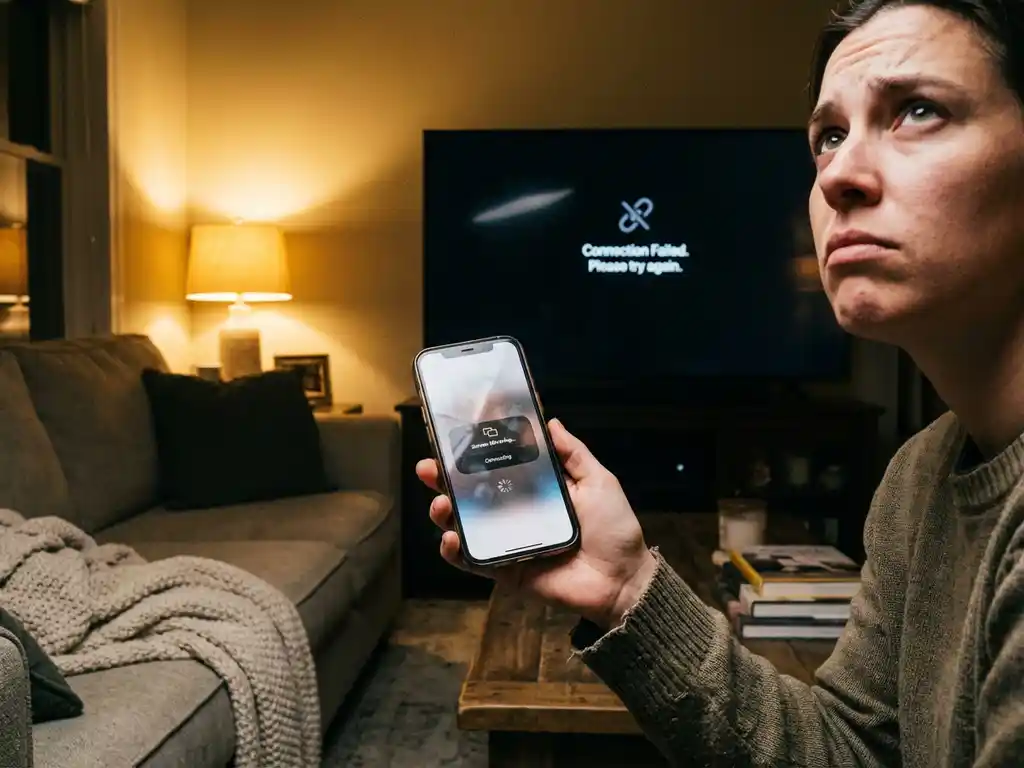
iPhone screen mirroring failures typically stem from network connectivity issues, device compatibility problems, or software conflicts. Most mirroring problems can be resolved through systematic troubleshooting, including checking Wi-Fi connections, restarting devices, and updating apps. Understanding the common causes and solutions helps restore seamless wireless casting functionality.
What are the most common reasons iPhone screen mirroring stops working?
Network connectivity issues are the primary cause of iPhone screen mirroring failures. Both your iPhone and the target TV must be connected to the same Wi-Fi network for wireless casting to function properly. Weak signal strength, network congestion, or router configuration problems can interrupt the data transfer required for iPhone screen mirroring.
Device compatibility problems frequently prevent successful connections. Not all smart TVs support native iPhone mirroring, and some require specific receiver apps to be installed on the television. Older TV models may lack the necessary wireless protocols, while some streaming devices require specific app versions to establish connections with iOS devices.
Software conflicts are another common barrier to successful mirroring. Outdated iOS versions, incompatible mirroring apps, or conflicting background processes can interfere with casting functionality. Background apps that consume bandwidth or system resources may also disrupt the mirroring connection, causing intermittent failures or complete disconnection.
Hardware limitations on either device can prevent proper screen mirroring. Insufficient processing power, limited memory, or overheating can cause performance issues that interrupt wireless casting. Some older iPhone models may struggle with high-definition mirroring, particularly when running multiple apps simultaneously.
How do you fix iPhone screen mirroring when it suddenly stops connecting?
Begin troubleshooting by restarting both your iPhone and the target TV completely. Power cycling both devices clears temporary software glitches and resets network connections. Turn off your iPhone, wait thirty seconds, then turn it back on. Similarly, unplug your TV for at least ten seconds before reconnecting the power cable.
Verify your Wi-Fi connection strength and stability on both devices. Navigate to Settings > Wi-Fi on your iPhone to confirm you’re connected to the correct network. Check that your TV is connected to the same network through its settings menu. If signal strength appears weak, move closer to your router or restart your wireless network equipment.
Update your mirroring apps and iOS software to the latest versions available. Outdated software often contains bugs that prevent proper connectivity. Visit the App Store to check for app updates, and go to Settings > General > Software Update to install any pending iOS updates. Many connectivity issues are resolved after installing the latest software versions.
Close background apps that might interfere with the mirroring process. If your iPhone has a Home button, double-press it and swipe up on unnecessary apps to close them. If your iPhone uses Face ID, swipe up from the bottom of the screen and pause, then swipe up on unnecessary apps to close them. This frees up system resources and reduces potential conflicts. Focus particularly on video streaming apps or other bandwidth-intensive applications that might compete with the mirroring connection.
Reset your network settings if connection problems persist. Go to Settings > General > Transfer or Reset iPhone > Reset > Reset Network Settings. This clears saved Wi-Fi passwords and network configurations, allowing you to establish fresh connections. You’ll need to reconnect to your Wi-Fi network after completing this reset.
Why does iPhone screen mirroring work sometimes but not others?
Network stability fluctuations cause the most common intermittent mirroring problems. Wi-Fi signal strength varies throughout the day due to interference from other devices, network congestion during peak usage times, or physical obstacles between your iPhone and router. These variations can interrupt the continuous data stream required for smooth screen mirroring.
Device performance changes can significantly affect mirroring consistency. When your iPhone runs multiple demanding applications or has a low battery, it may not maintain the processing power needed for stable casting. Similarly, smart TVs with limited memory or processing capabilities may struggle during high-usage periods or when running several apps simultaneously.
Background app interference creates unpredictable mirroring behavior. Automatic app updates, cloud synchronization, or notification-heavy applications can consume bandwidth and system resources intermittently. These processes may not always run at the same times, explaining why mirroring works perfectly on some occasions but fails on others.
Environmental factors influence wireless connectivity reliability. Moving between rooms, temporary interference from household appliances, or changes in network traffic from other connected devices can affect signal quality. Weather conditions, particularly during storms, may also impact wireless signal stability and cause intermittent connection issues.
Temperature-related performance variations affect both devices. iPhones may throttle performance when overheating, while smart TVs can experience processing slowdowns during extended use. These thermal management systems can cause previously stable mirroring connections to become unreliable without obvious external causes.
What should you check first when your iPhone won’t mirror to any TV?
Confirming your Wi-Fi connectivity is the essential starting point for troubleshooting complete mirroring failures. Both devices must be connected to the same wireless network for screen mirroring to work. Check your iPhone’s Wi-Fi settings and verify your TV’s network connection through its settings menu to ensure they match exactly.
Verify your iPhone’s compatibility with your specific TV model or streaming device. Not all televisions support direct iPhone mirroring without additional software. Many smart TVs require downloading a receiver app or a specific mirroring application to establish connections with iOS devices. Research your TV brand’s requirements before attempting to mirror.
Check your iOS version and update it if necessary. Older iOS versions may lack compatibility with newer smart TV models or current mirroring protocols. Navigate to Settings > General > Software Update to install any available updates. Ensure your iPhone is running a recent iOS version that supports the mirroring features you’re trying to use.
Test your mirroring app by downloading a reliable screen mirroring application if built-in options fail. AirPlay may be disabled on your iPhone, or your TV might not support Apple’s native mirroring protocols. Third-party mirroring apps often provide broader compatibility across different TV brands and models. For comprehensive troubleshooting guidance, check our detailed knowledge base.
Examine your network bandwidth and router performance, as insufficient network speed can prevent mirroring entirely. Close bandwidth-intensive applications on all connected devices and test mirroring again. Consider using a universal remote control TV app to manage your TV settings and connections more efficiently. Consider restarting your router if multiple devices experience connectivity issues simultaneously, as this often resolves network-wide problems affecting wireless casting.
If iPhone screen mirroring problems persist despite troubleshooting, the issue often lies in network configuration or device compatibility rather than hardware failure. Most casting problems are resolved by systematically checking Wi-Fi connections, installing software updates, and ensuring the correct apps are installed. Understanding these fundamental requirements enables quick diagnosis and resolution of most mirroring difficulties you may encounter. If you need additional support, don’t hesitate to contact us for personalized assistance.
How AirBeamTV Helps with iPhone Screen Mirroring Issues
AirBeamTV provides a comprehensive solution for iPhone screen mirroring problems by offering reliable, cross-platform compatibility and robust connection stability. When built-in mirroring fails or your TV doesn’t support native iOS casting, AirBeamTV bridges the compatibility gap with dedicated apps for every major TV brand and streaming device.
Key benefits of using AirBeamTV for troubleshooting mirroring issues include:
• Universal compatibility – Works with Samsung, LG, Sony, Roku, Chromecast, and dozens of other TV brands that may not support AirPlay
• Enhanced network optimization – Advanced algorithms maintain stable connections even on congested Wi-Fi networks
• Simplified setup process – Eliminates complex network configurations and device pairing requirements
• High-quality streaming – Delivers smooth, lag-free mirroring even on older iPhone models
• Regular updates – Continuous compatibility improvements ensure reliable performance with new iOS versions
Whether you need to mirror your Mac screen or mirror Android to TV, AirBeamTV offers comprehensive solutions for all your screen mirroring needs. Download the AirBeamTV app for your specific TV brand today and experience hassle-free screen mirroring that actually works when you need it most.
