




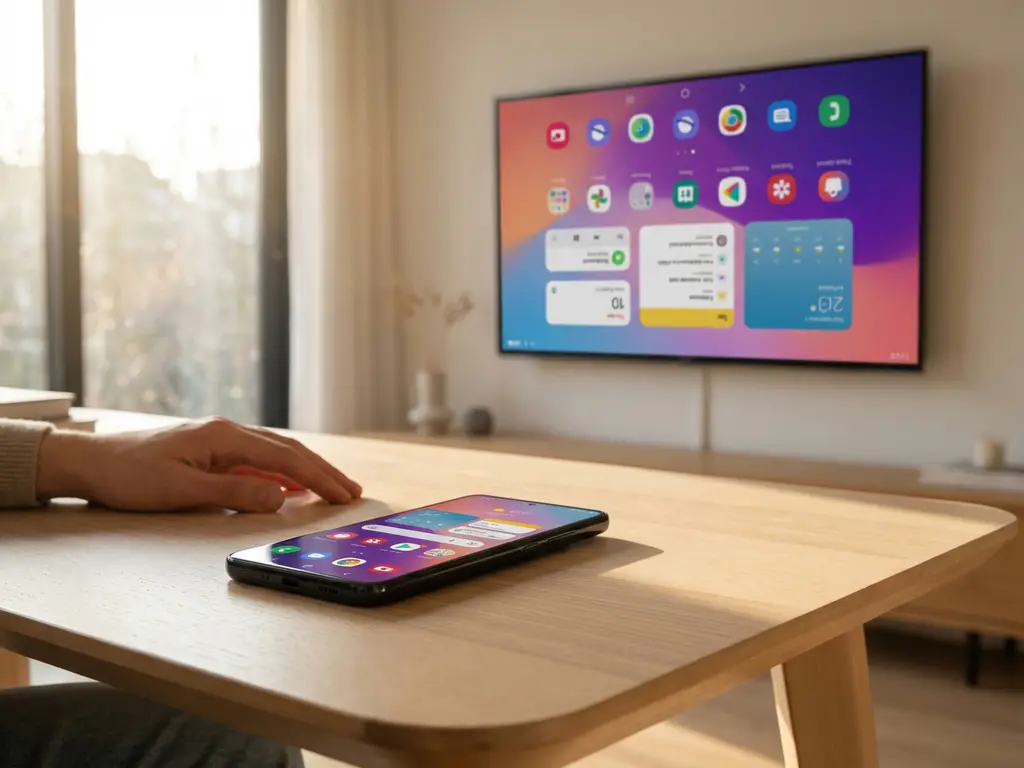
Android screen mirroring has become incredibly popular for streaming content from your phone to your TV, but nothing is more frustrating than seeing your display appear upside down on the big screen. This disorienting issue can turn a simple movie night into a technical headache, leaving you wondering what went wrong with your wireless connection.
The good news is that upside-down displays during Android screen mirroring are usually caused by common orientation conflicts that can be easily fixed. Understanding why this happens and knowing the right solutions will get you back to enjoying your content on the big screen without the neck strain.
What causes Android screen mirroring to display upside down?
Upside-down displays during Android screen mirroring occur when there’s a conflict between your phone’s orientation sensor and the TV’s display orientation. This happens because your Android device and the receiving TV interpret screen rotation differently, causing the mirrored image to appear inverted on your television screen.
The most common cause is when your phone’s auto-rotate feature is enabled while the mirroring app tries to maintain a fixed orientation. When you hold your device in landscape mode but the app expects portrait orientation, the display can flip unexpectedly. This orientation mismatch becomes especially problematic when switching between apps or rotating your device during an active mirroring session.
Another frequent culprit is outdated mirroring software that doesn’t properly communicate orientation changes between devices. Some older Android screen mirroring apps lack the sophisticated orientation detection needed to sync properly with modern smart TVs, leading to display conflicts that result in upside-down images.
How do you fix an upside-down screen when mirroring Android devices?
The quickest fix for an upside-down mirrored screen is to disable auto-rotate on your Android device and manually rotate your phone to the correct orientation before starting the mirroring session. This prevents orientation conflicts and ensures your display appears right-side up on the TV.
Start by going to your Android settings and turning off screen rotation or auto-rotate. Then hold your device in the orientation you want displayed on the TV, typically landscape for video content. Restart your mirroring connection with your device held in this fixed position.
If the problem persists, try these additional solutions:
- Close the mirroring app completely and reopen it with your device in the correct orientation.
- Restart both your Android device and your TV to reset the connection.
- Check for app updates in the Google Play Store, as newer versions often fix orientation bugs.
- Switch to a different mirroring app that offers better orientation control.
For persistent issues, clearing the mirroring app’s cache or reinstalling it entirely can resolve deeper orientation conflicts that standard troubleshooting doesn’t fix. If you continue experiencing problems, you can find additional troubleshooting resources in our comprehensive knowledge base.
Why does screen orientation change during wireless casting?
Screen orientation changes during wireless casting because Android devices continuously send orientation data to the receiving TV, and any movement or sensor fluctuation can trigger unwanted rotation. Unlike wired connections that maintain a fixed display state, wireless mirroring relies on real-time communication between devices that can be disrupted by motion or software conflicts.
Your Android device’s accelerometer and gyroscope constantly monitor its position, automatically adjusting the screen orientation based on how you hold it. During wireless casting, this orientation data is transmitted to your TV along with the visual content. Even small movements or vibrations can cause the sensors to register a rotation change, immediately flipping the display on your television.
Network latency can also cause orientation changes to appear delayed or out of sync. When there’s a lag between your device detecting a rotation and the TV receiving that information, you might see the display flip several seconds after moving your phone, creating a disorienting viewing experience.
What are the most common Android mirroring display problems?
The most common Android screen mirroring display problems include upside-down screens, black bars around the image, pixelated or blurry video quality, and significant lag between your device and your TV display. These issues typically stem from resolution mismatches, weak Wi-Fi connections, or compatibility problems between your device and the mirroring app.
Resolution conflicts create some of the most noticeable display issues. When your Android device’s screen resolution doesn’t match your TV’s native resolution, you’ll see black bars, stretched images, or content that appears cut off at the edges. This is particularly common when mirroring older phones to 4K TVs or when aspect ratios don’t align properly.
Other frequent display problems include:
- Audio and video becoming out of sync during mirroring sessions
- Color distortion or washed-out images on the TV screen
- Intermittent connection drops that cause the display to freeze or disconnect
- Choppy or stuttering video playback, especially with high-motion content
Poor Wi-Fi signal strength remains the underlying cause of many display issues, as wireless mirroring requires consistent, high-bandwidth connectivity to maintain smooth video transmission between your Android device and your television. Similar display challenges can occur across different platforms, such as when you mirror iPhone iPad screen or mirror your Mac screen.
How do different Android mirroring apps handle screen orientation?
Different Android screen mirroring apps handle screen orientation in different ways, with some offering manual orientation locks while others rely on automatic detection systems. Premium apps typically provide more sophisticated orientation controls, allowing users to force specific orientations or disable rotation entirely during mirroring sessions.
Basic mirroring apps often struggle with orientation management because they simply mirror whatever your device displays without additional processing. When your phone rotates, these apps immediately send the new orientation to your TV, regardless of whether it’s appropriate for the content you’re viewing.
More advanced mirroring solutions offer features such as:
- Orientation lock settings that maintain a consistent display regardless of device movement
- Smart rotation that changes orientation only for specific types of content
- Manual override controls that let you force landscape or portrait mode
- Automatic optimization that detects your TV’s preferred orientation and adjusts accordingly
The most reliable Android screen mirroring apps include built-in orientation stabilization that prevents unwanted flipping while still allowing intentional rotation changes. These apps typically require a brief setup process in which you configure your preferred orientation settings, but they provide much more consistent results than basic mirroring solutions. For professional-grade screen mirroring solutions that handle orientation seamlessly, explore the options available at AirBeam TV, or contact us for personalized assistance with your specific mirroring needs. You can also enhance your setup with a universal remote control TV app to manage your devices more conveniently.
